1)Add two images to your document and then group them.
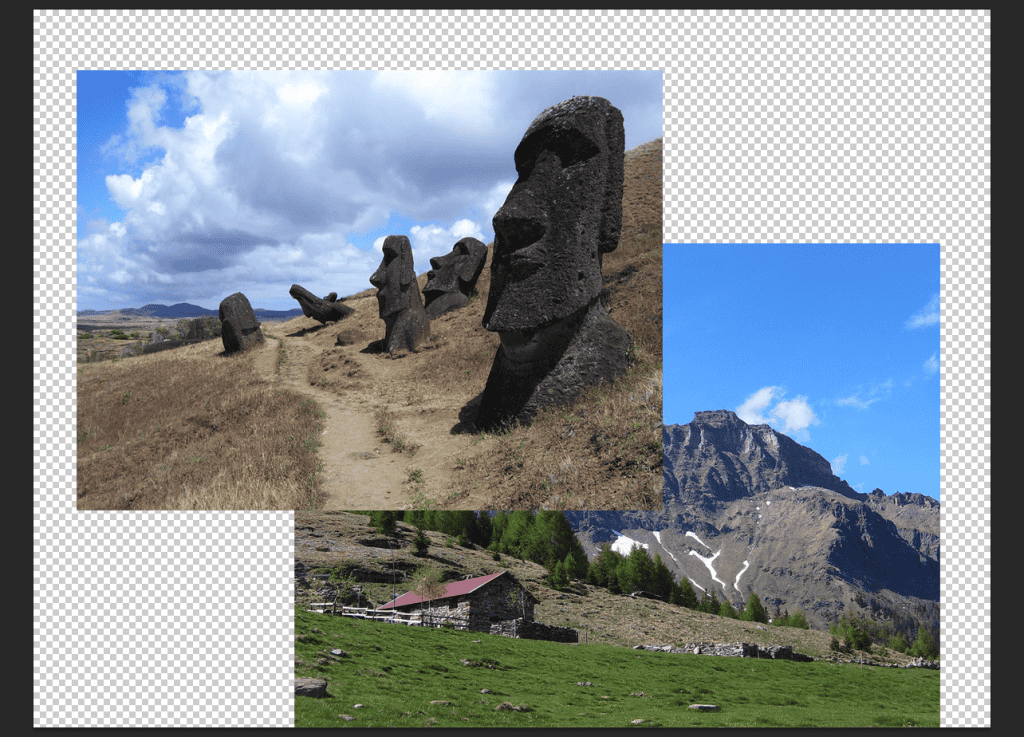
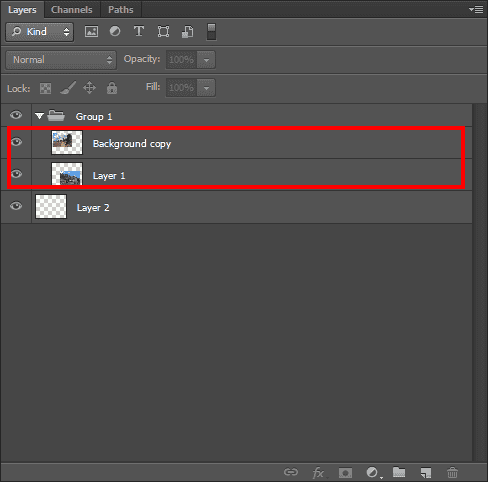
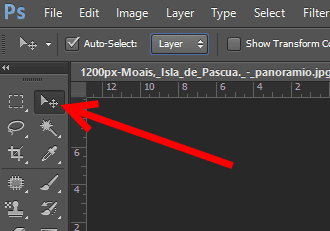
2) Select the move tool from the toolbar.
3) Select the layer in the layer panel and move it.
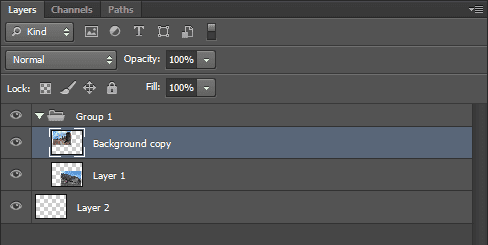
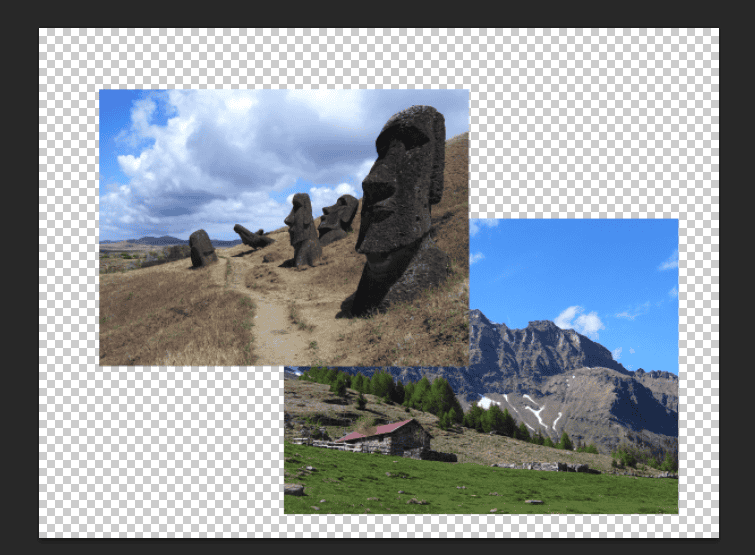
I selected the image layer on the left and moved it to the right.
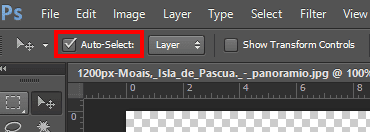
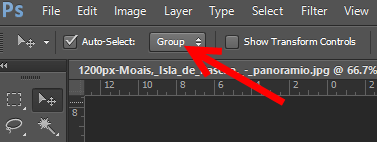
4) You can check the options of the move tool at the top. If you check auto select, the layer of the image you clicked on the canvas will be automatically selected. (This is the same as unchecking auto select and selecting the image with ctrl+click)
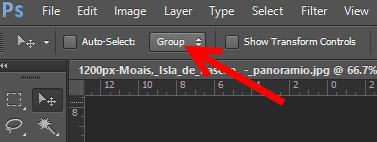
4) If you uncheck auto select and select Group, you can select the Group unit in the layer panel and move it on the canvas.
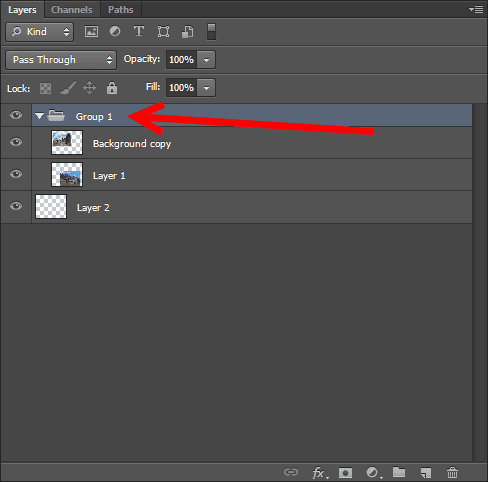
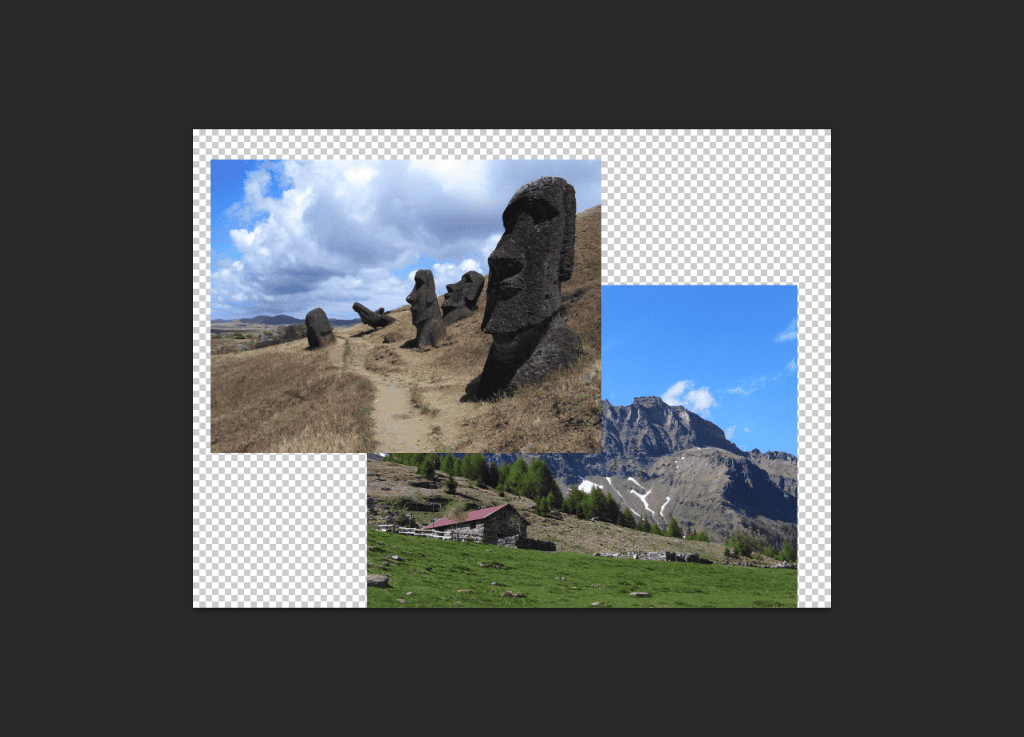
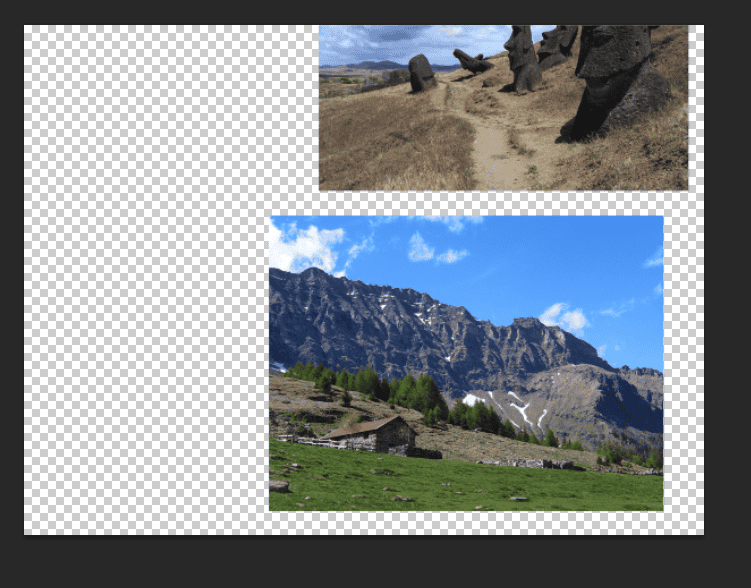
I selected and moved a group containing two images.
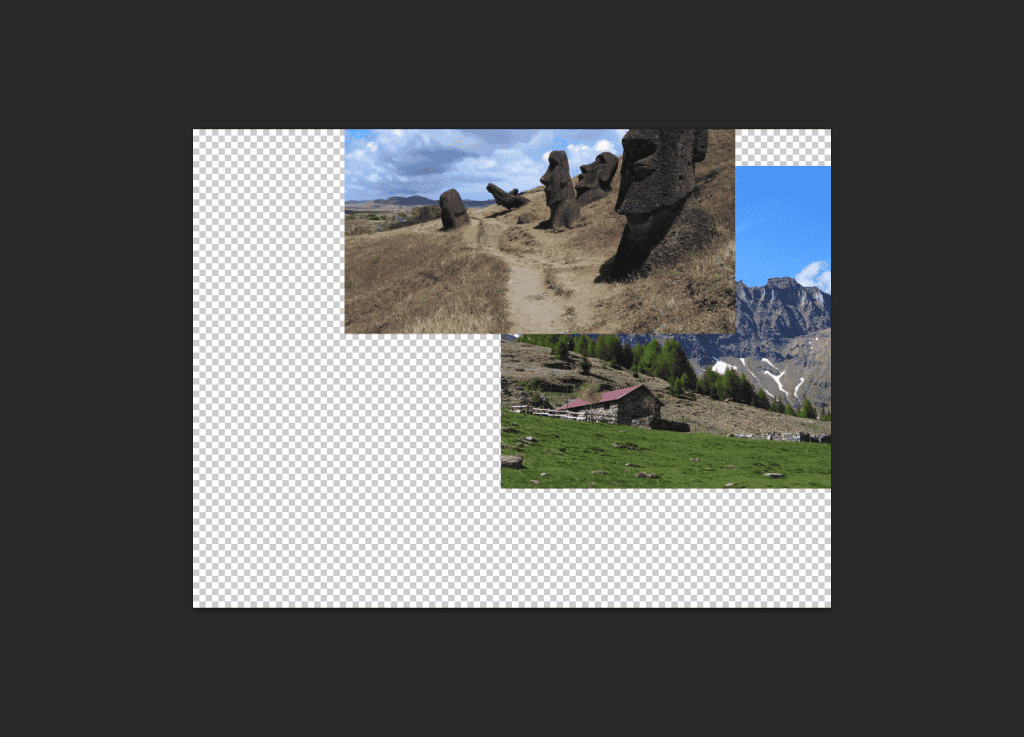
5) If you check auto select and select group, when you click an image on the canvas, the group of the image layer will be selected and you can move it on the canvas.
![[Photoshop] How to remove white outlines from edges of images(Defringe)](https://inspired-learn-create.com/wp-content/uploads/2025/06/2019-05-17_23-30-43.jpg)
![[Photoshop] How to change text to uppercase or lowercase](https://inspired-learn-create.com/wp-content/uploads/2025/06/2021-08-03_18-12-23.jpg)
![[Photoshop] Collapse or expand all Groups in the Layers panel using shortcuts](https://inspired-learn-create.com/wp-content/uploads/2025/06/2021-08-05_13-46-57.png)