In 3D Max, the Use Real-World Scale property of a bitmap is used to map a bitmap texture to the actual physical size.
Before using this, you need to have the correct Unit Setup and Object Size set..
1) Prepare a 3D model in the scene and map the texture.

Not using Use Real-World Scale (manually adjust UV scale)
2) Usually, when setting the size of a texture to be mapped to a model, you can manually adjust the size of the texture to be mapped by adding a UVW Map or Unwrap UV modifier to the object and modifying the UV scale.

3)Adjust the size of the texture you are mapping by adjusting the size of the Gizmo in the UVW Map.
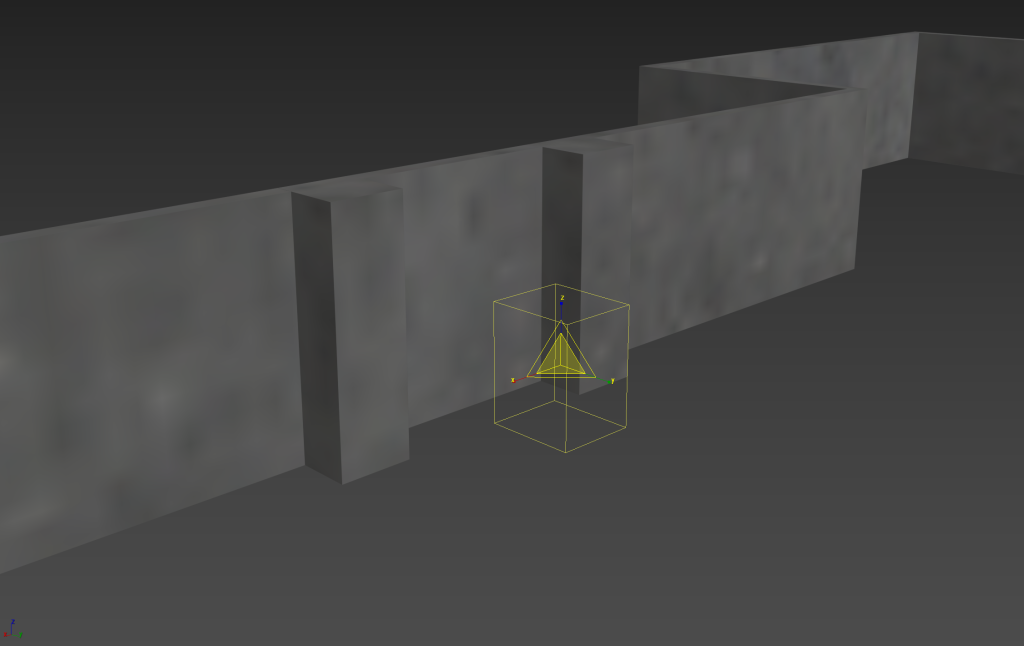
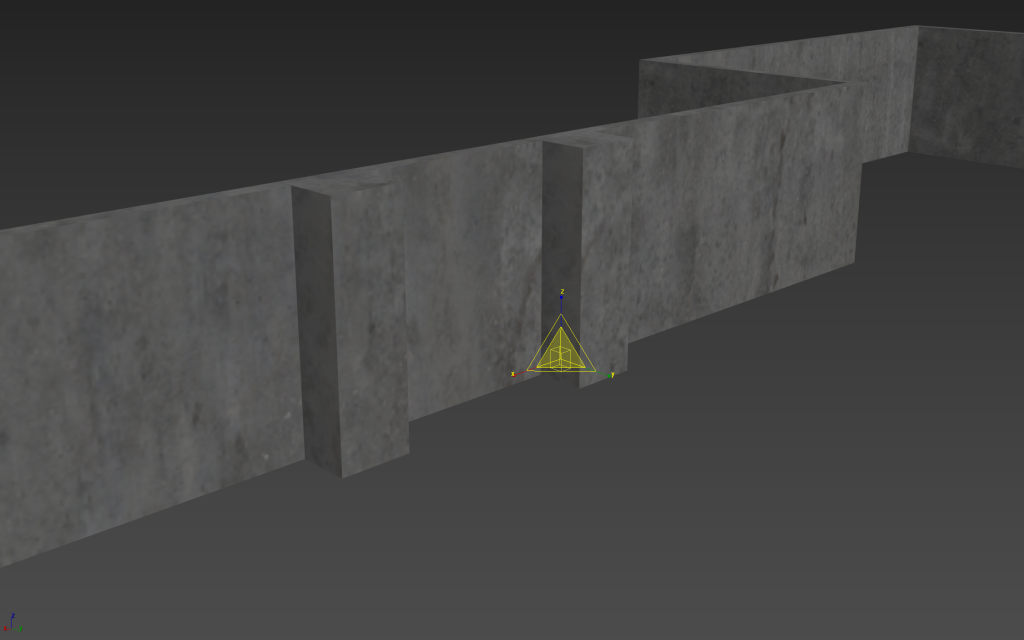
Use Real-World Scale
4) To use the real-world texture mapping method for a model, check the Use Real-World Scale property in the texture bitmap and set the size of the texture in Size.
For example, if you use a 50cm x 50cm (Size – Width, Height) tile texture on a 1m x 1m wall, the texture will automatically be arranged in a 2×2 pattern.

5) In the UVW Map modifier, select the Mapping type and check Real-World Map Size.

6) You can see that the real-world size texture is mapped to the model (no need to modify the UV scale directly).

7) Check the properties for all the textures used in the material and set the same (or appropriate) resolution.
(Reflection Map, Normap Map, Displacement Map, etc.)


![[3D Max]Solving the problem of uneven Shell thickness(Straighten Corners)](https://inspired-learn-create.com/wp-content/uploads/2025/06/2025-02-26_12-24-03-1024x697.png)
![[3D Max] Shortcut tips for use in the viewport quad menu](https://inspired-learn-create.com/wp-content/uploads/2025/06/2025-01-25_15-49-33.png)
![[3D Max] How to set Mouse Wheel Zoom Sensitivity](https://inspired-learn-create.com/wp-content/uploads/2025/06/2025-01-25_15-38-06.png)