1)When you drag and drop an image into Photoshop, it sets the image as a smart object by default. This is because the option ‘always create smart objects when placing‘”’ is enabled by default in the general section of the preferences.

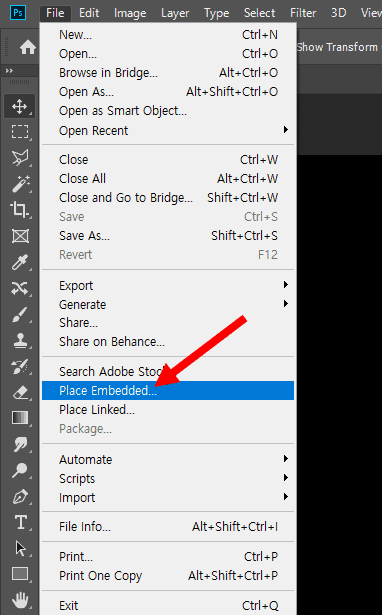
2) To import an external image file into a document you are working on in Photoshop, drag and drop the file onto the canvas. Or, go to Place Embedded in the File menu at the top and select the image file.
3) A bounding box will appear on the imported image, and pressing Enter will add the image layer.

4) The indication at the bottom right of the layer thumbnail means that the layer is a smart object.

5)Right-click on the layer that is a smart object and select Edit Contents

6) A new document will be added, and you can edit the contents of the smart object.


![[Photoshop] How to remove white outlines from edges of images(Defringe)](https://inspired-learn-create.com/wp-content/uploads/2025/06/2019-05-17_23-30-43.jpg)
![[Photoshop] How to change text to uppercase or lowercase](https://inspired-learn-create.com/wp-content/uploads/2025/06/2021-08-03_18-12-23.jpg)
![[Photoshop] Collapse or expand all Groups in the Layers panel using shortcuts](https://inspired-learn-create.com/wp-content/uploads/2025/06/2021-08-05_13-46-57.png)