This tutorial will guide you through the simple steps to change the interface language to English in Photoshop(The version used is Photoshop CC 2019)
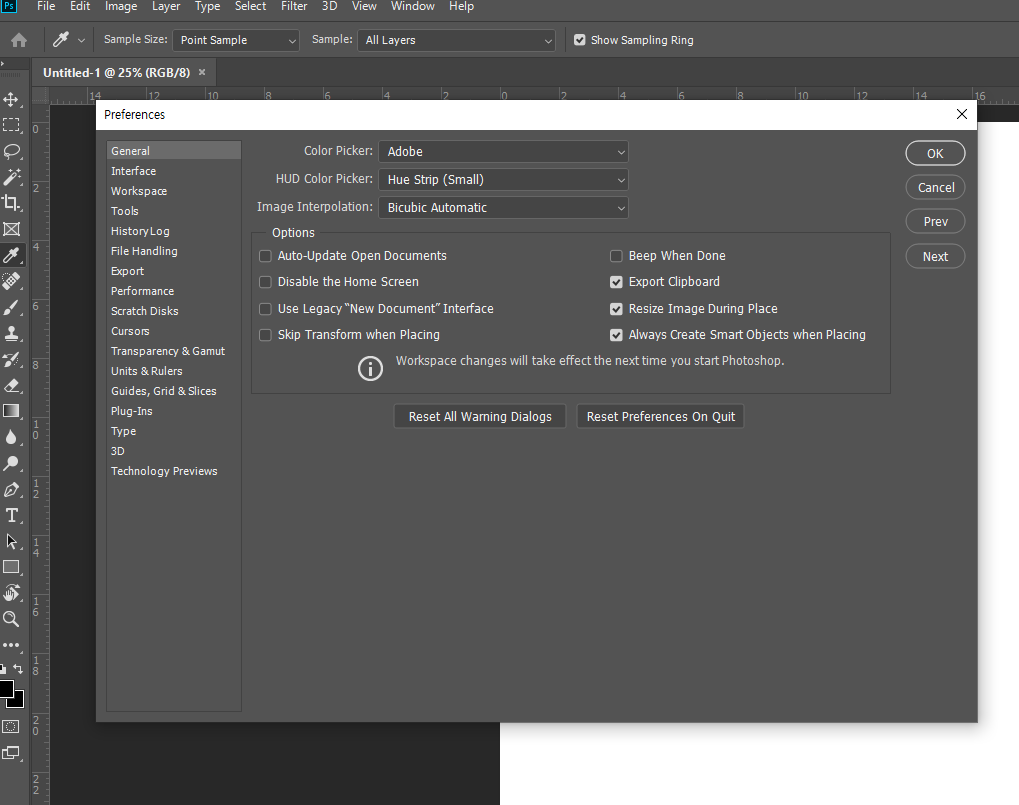
1) The Photoshop Preferences menu does not provide an option to change the user language. In my case, the current Photoshop program is displayed in Korean.

2)To change the language to English, delete or back up the file located in the path below.

For Korean, it is tw10428_Photoshop_ko_KR.dat with the name ko_KR
64bit
C:\Program Files\Adobe\Adobe Photoshop CC 2019\Locales\ko_KR\Support Files
32bit
C:\Program Files (x86)\Adobe\Adobe Photoshop CC 2019\Locales\ko_KR\Support Files
3) Renamed the file to make it useless or back it up.

4) When you restart Photoshop, you can see that all user menus are displayed in English.
![[Photoshop] How to remove white outlines from edges of images(Defringe)](https://inspired-learn-create.com/wp-content/uploads/2025/06/2019-05-17_23-30-43.jpg)
![[Photoshop] How to change text to uppercase or lowercase](https://inspired-learn-create.com/wp-content/uploads/2025/06/2021-08-03_18-12-23.jpg)
![[Photoshop] Collapse or expand all Groups in the Layers panel using shortcuts](https://inspired-learn-create.com/wp-content/uploads/2025/06/2021-08-05_13-46-57.png)