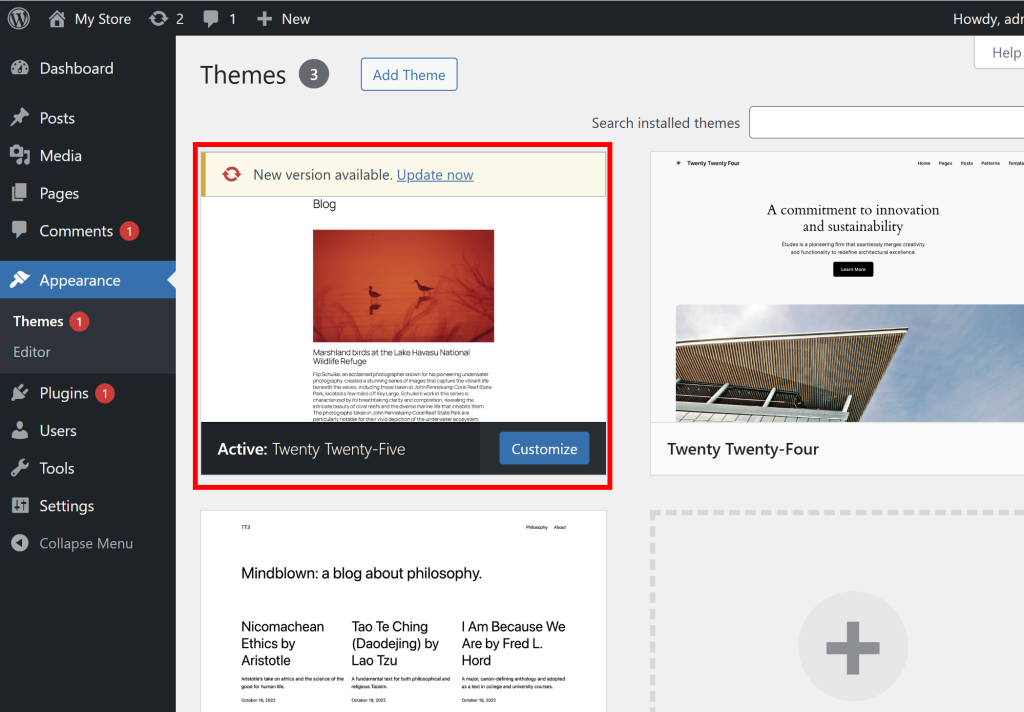
1) You can check the currently activated and used theme in the theme of the appearance menu on the left side of the WordPress admin page.
Twenty Twenty-Five is one of the official default themes provided by WordPress. It is a block-based theme that allows you to configure the entire website (Header, Footer, Post, etc.) using the block editor.
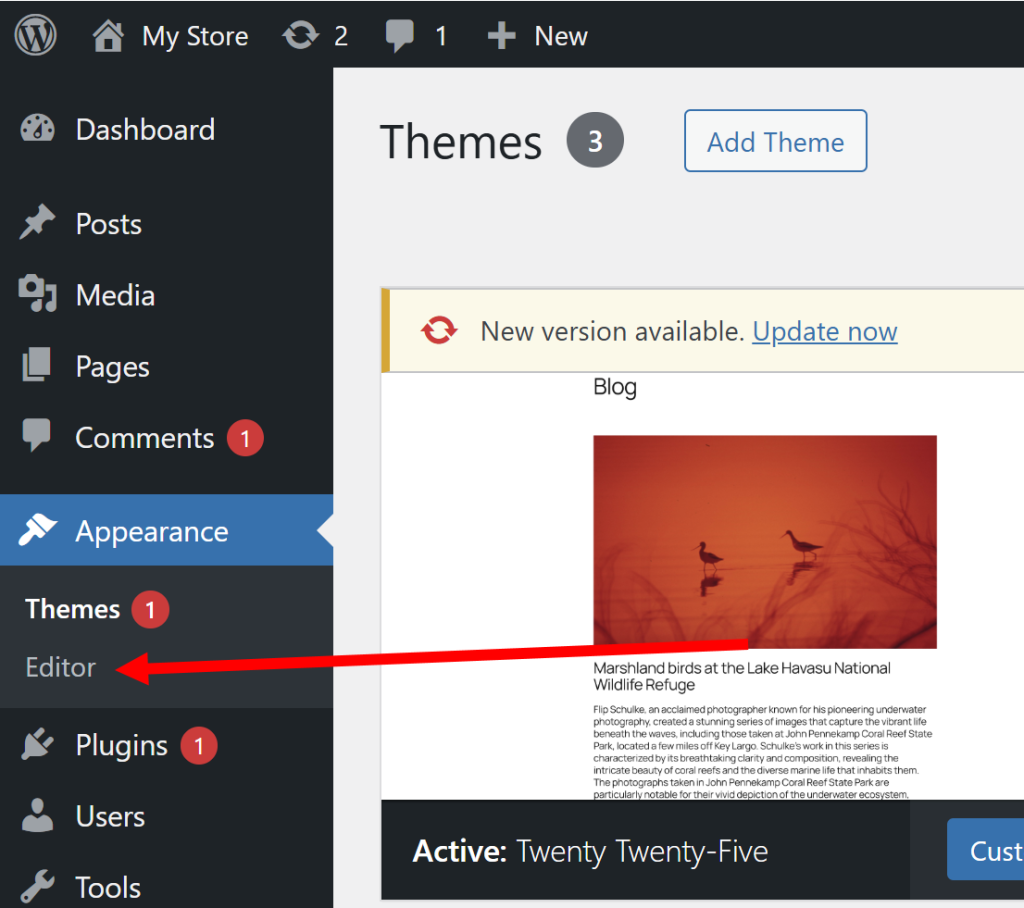
2) To edit and configure the website, go to editor in the appearance menu.
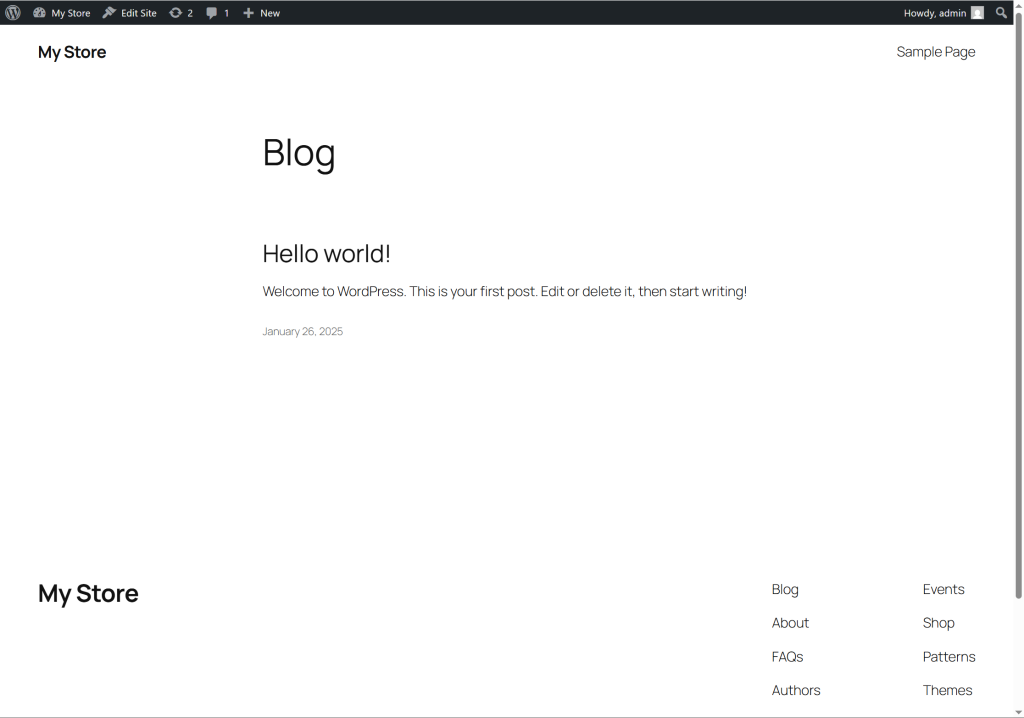
3) It displays the homepage of the website and allows you to customize the appearance of the website using the block editor.
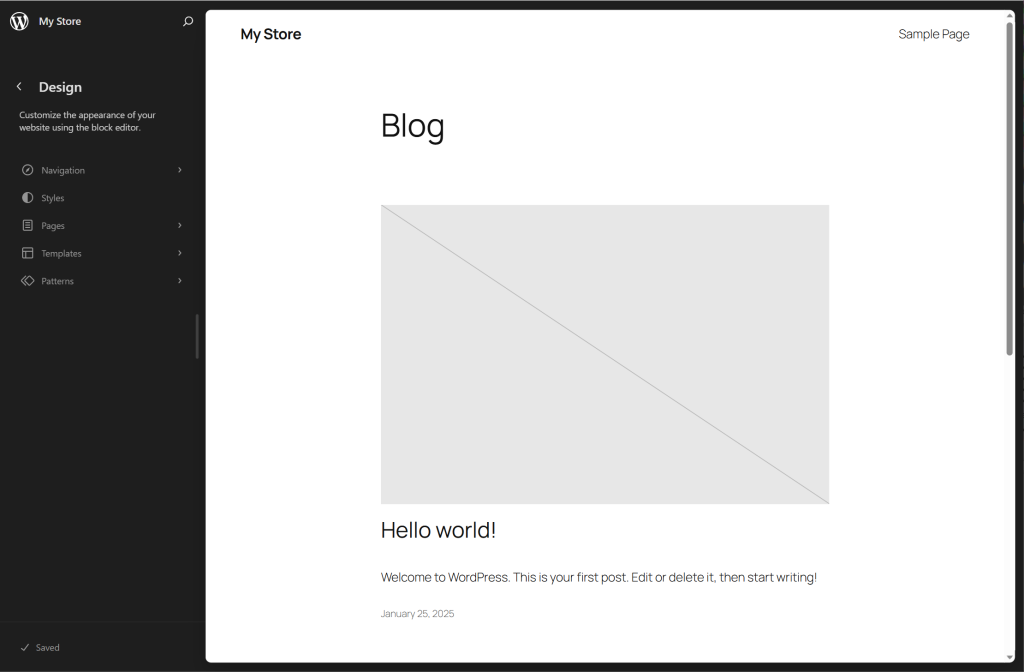
4) Select Templates menu on the left.
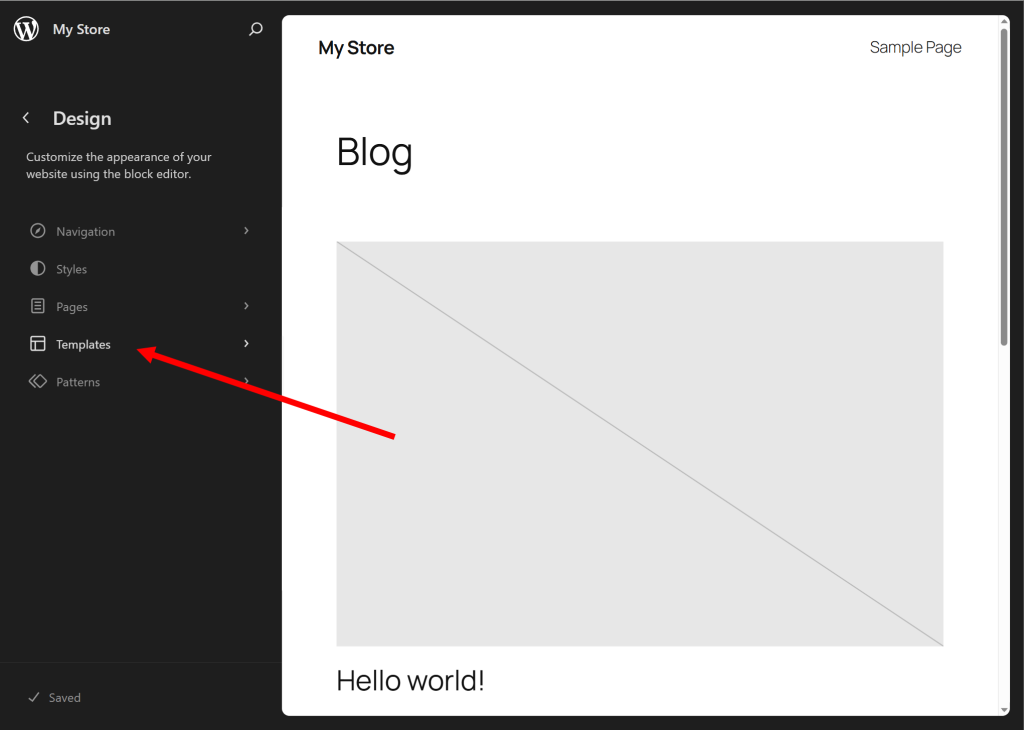
5) Templates are design layout structures that define how the page types (posts, pages, archives, 404 error pages, etc.) of the site will be displayed.
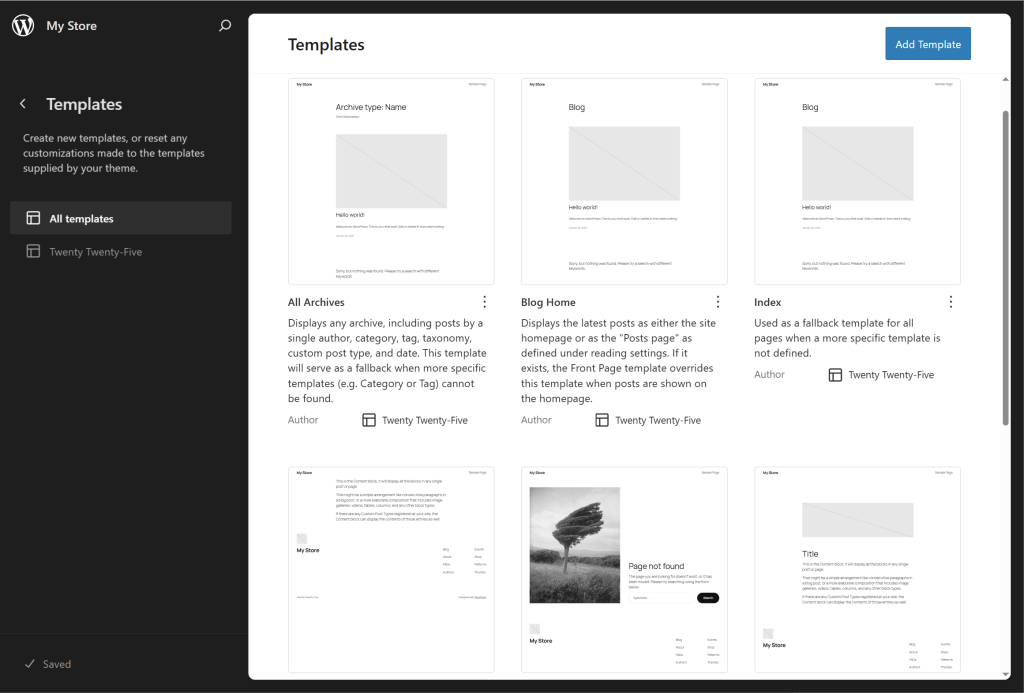
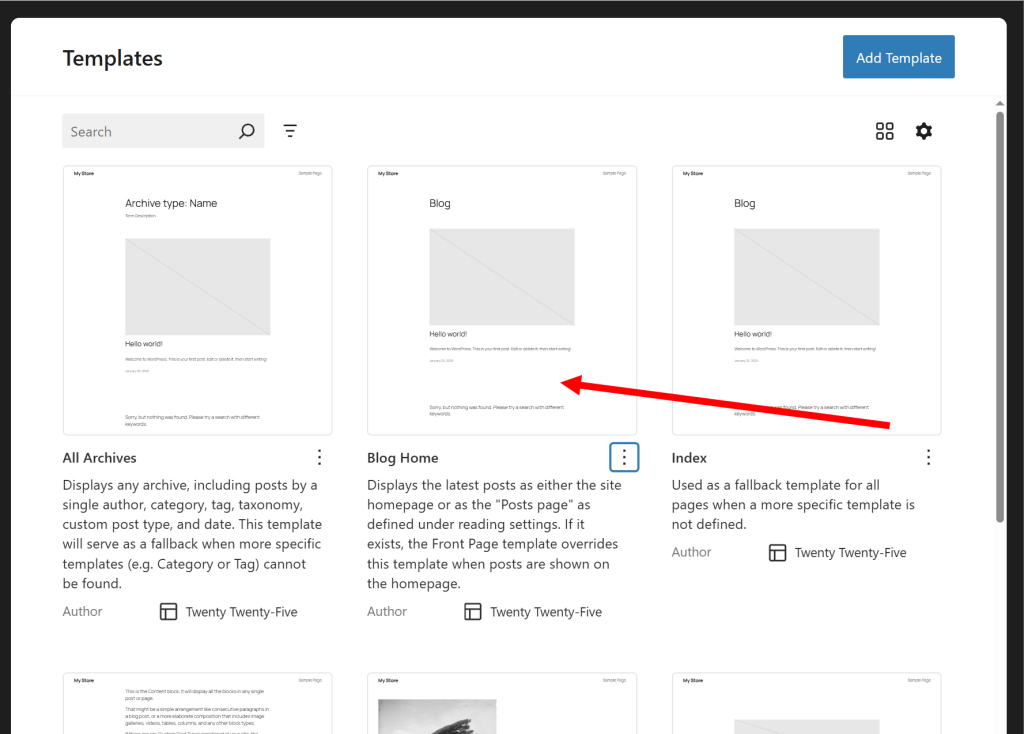
6) Select Blog Home Template and go to Edit
Blog Home is the main page that usually displays the list of latest blog posts (if this is the default setting)
Set the site main page type to Blog Home (displays the list of latest blog posts)
7) At the top or top right of the page, you can see that the template you are currently editing is a predefined Blog Home Template.
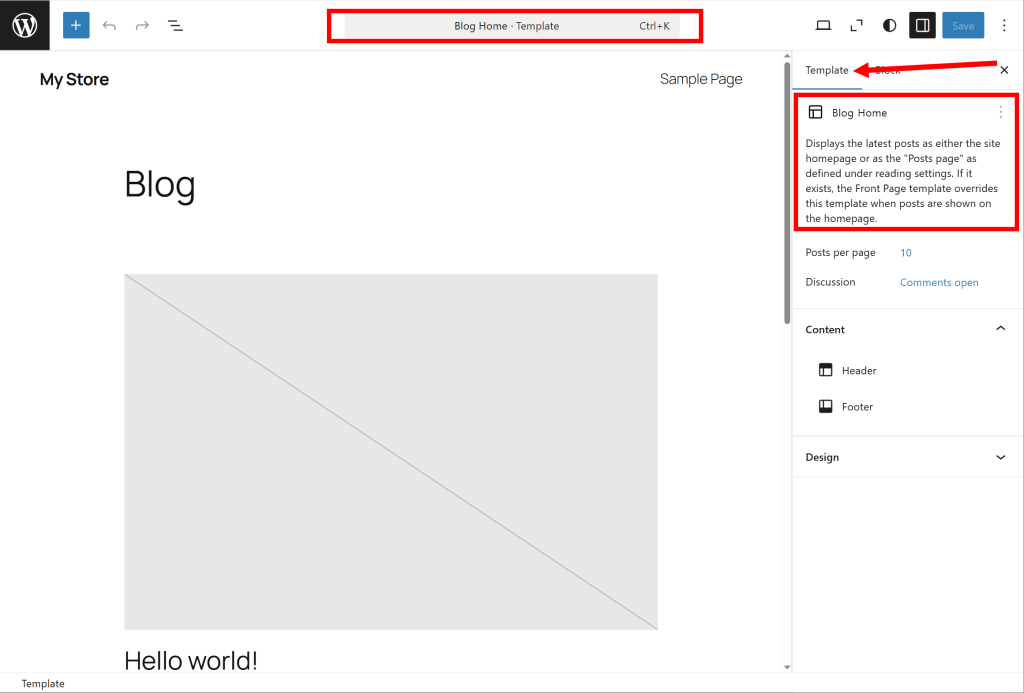
8) Posts per page means the maximum number of posts to display on the page.
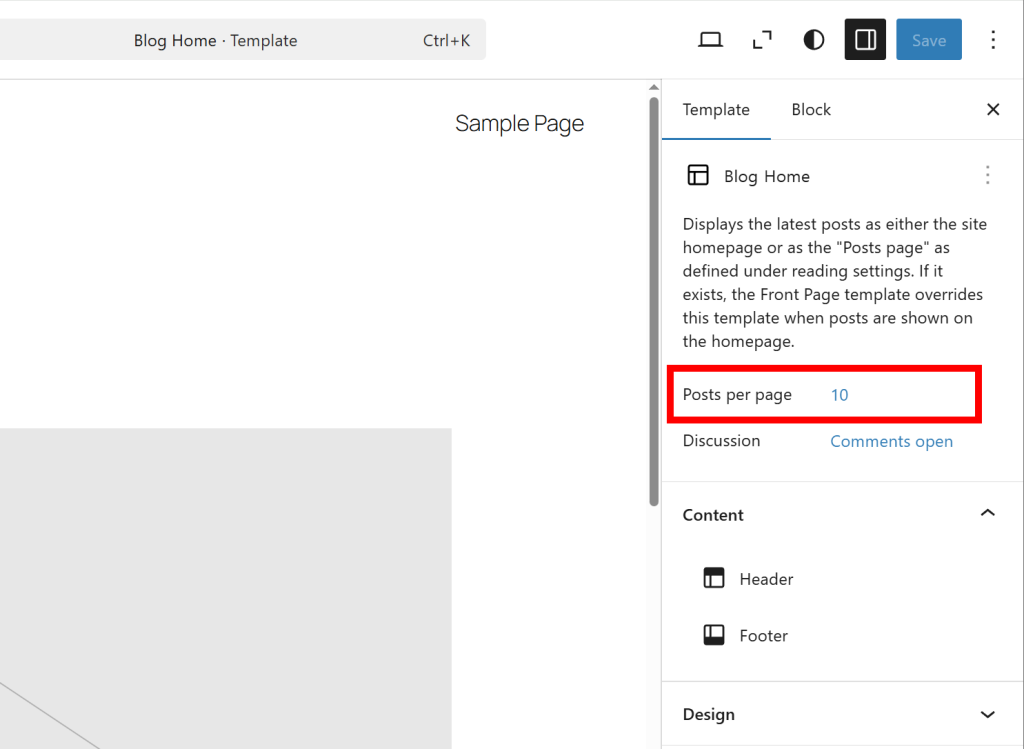
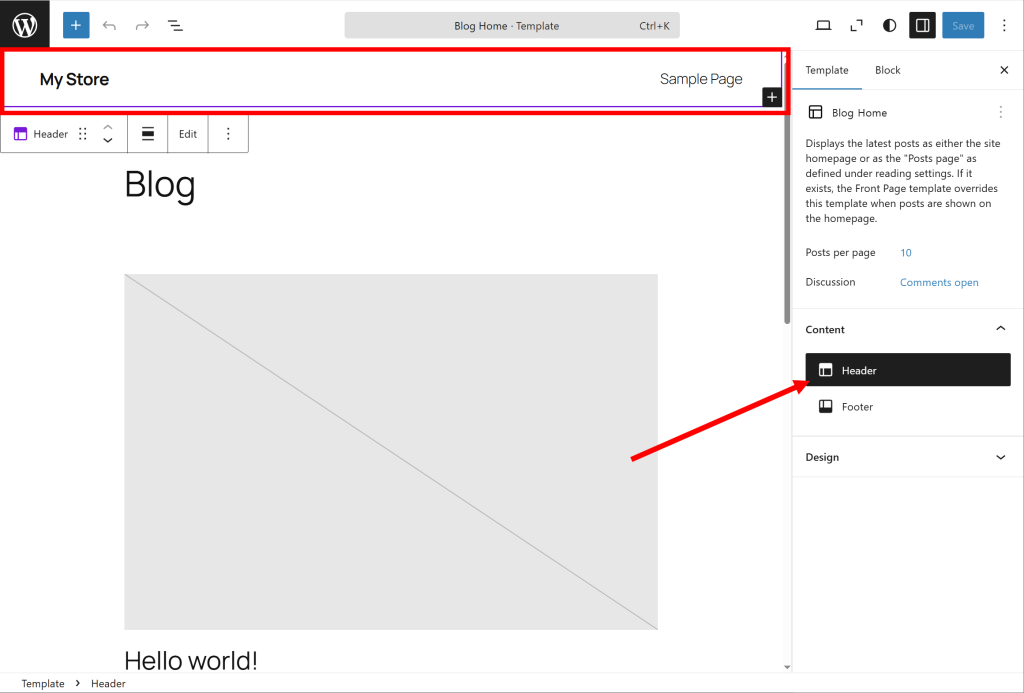
9) Select Header in Content to select the header (pre-configured) of the Blog Home template. The header usually contains the site title, logo, menu, search, login button, etc. in the top area of the site.
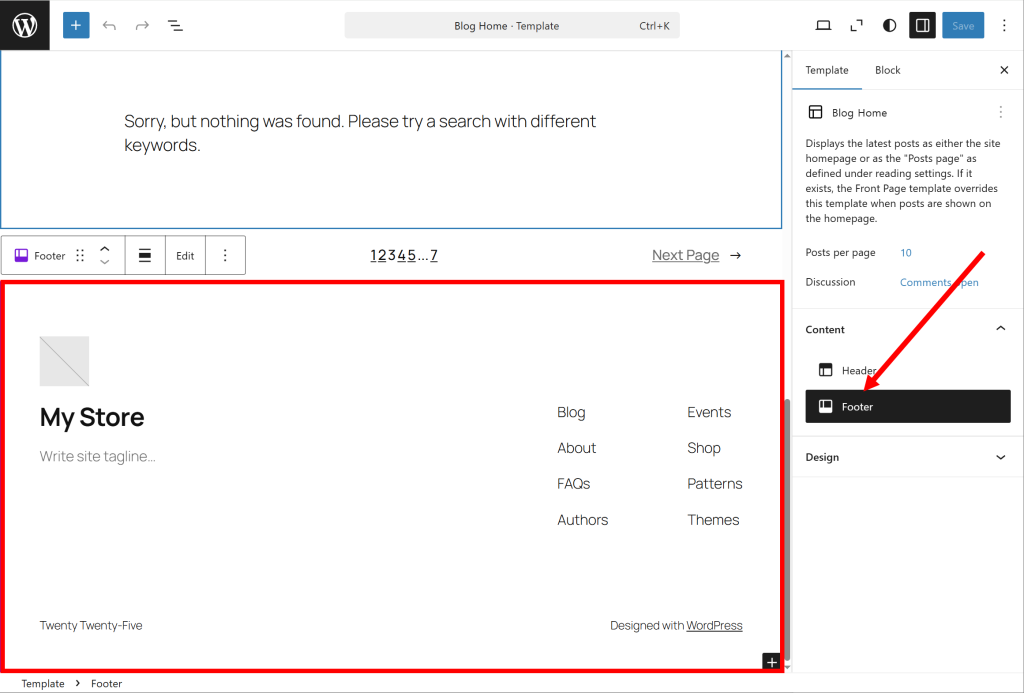
10) Select Footer in Content to select the footer (pre-configured) of the Blog Home template. The footer contains the copyright, contact, bottom menu, social links, footer widgets, etc. in the bottom area of the site.
11) In Design, you can check the design that can be applied to the entire Blog Home template.
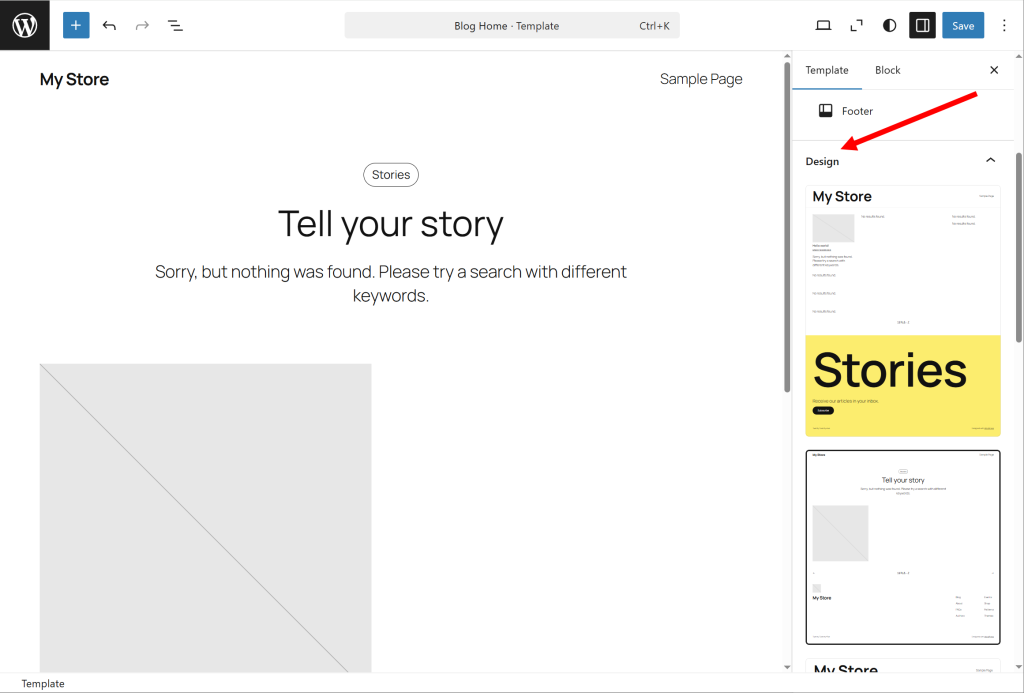
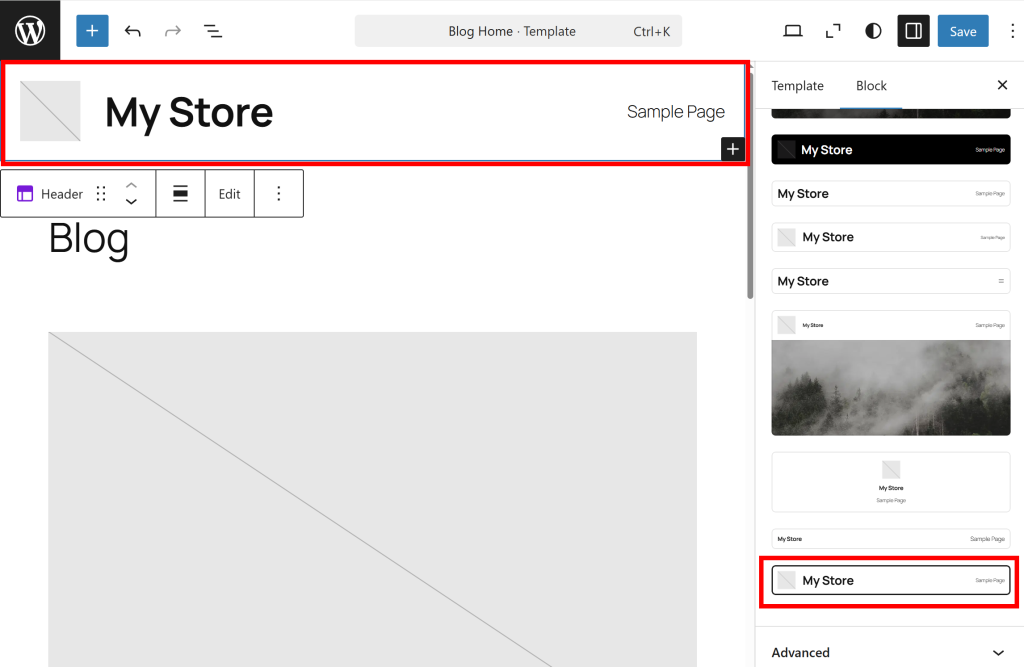
12) Select the header block at the top. You can check the preset designs that can be applied to the block.
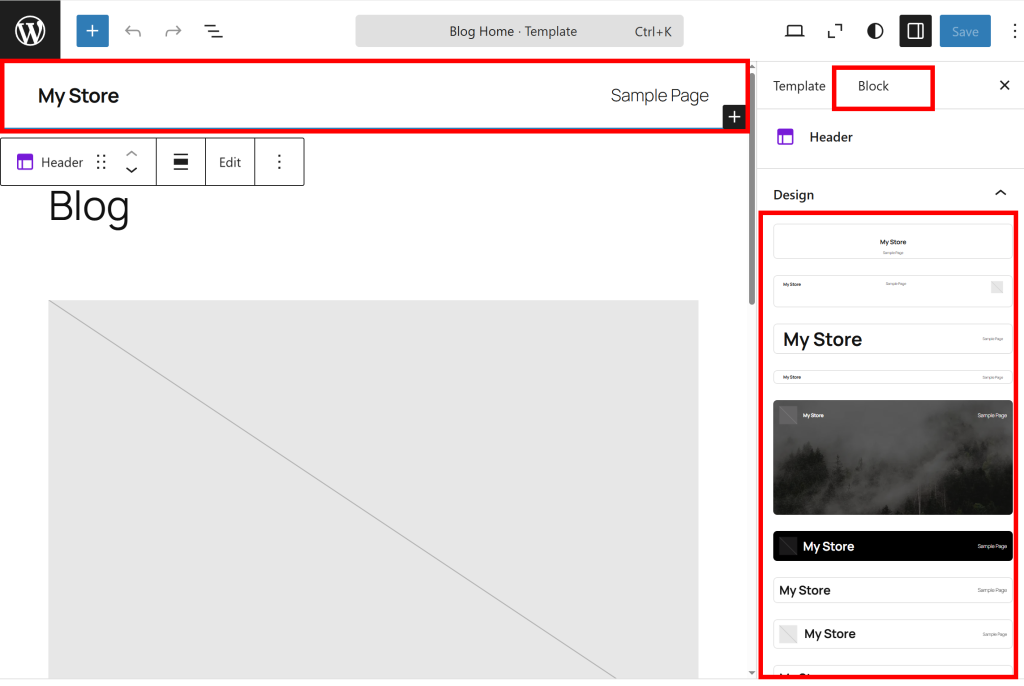
13) When you select a design, it will be reflected in the block.
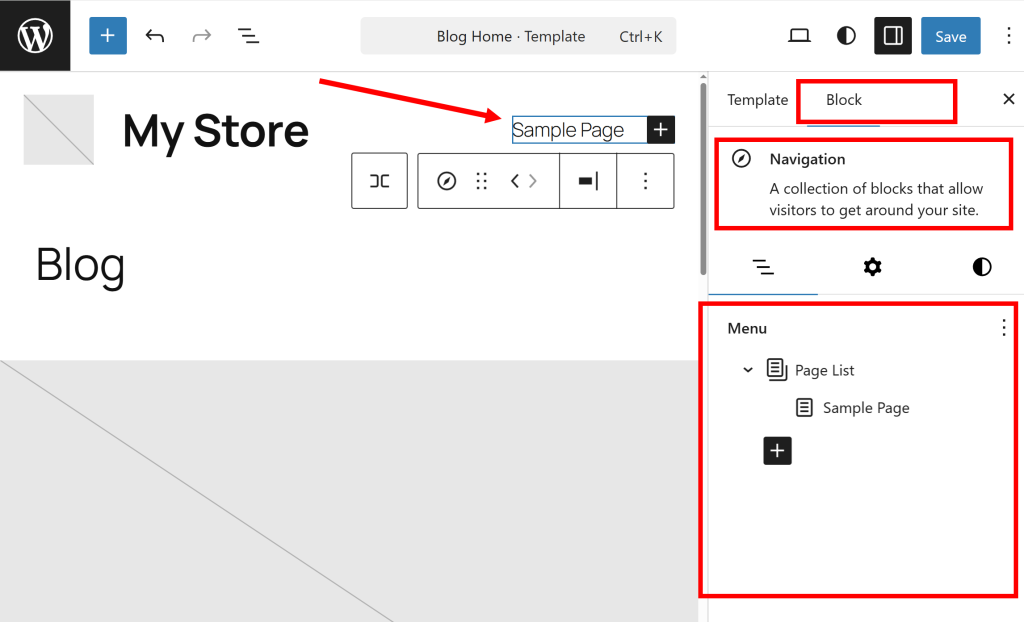
14) Select the navigation block inside the header. Navigation is usually located in the header or footer and is a menu that helps users move to the main pages of the site (home, introduction page, category, contact, etc.).
You can see that the navigation menu is set to page list and sample page by default.
15) Remove page list
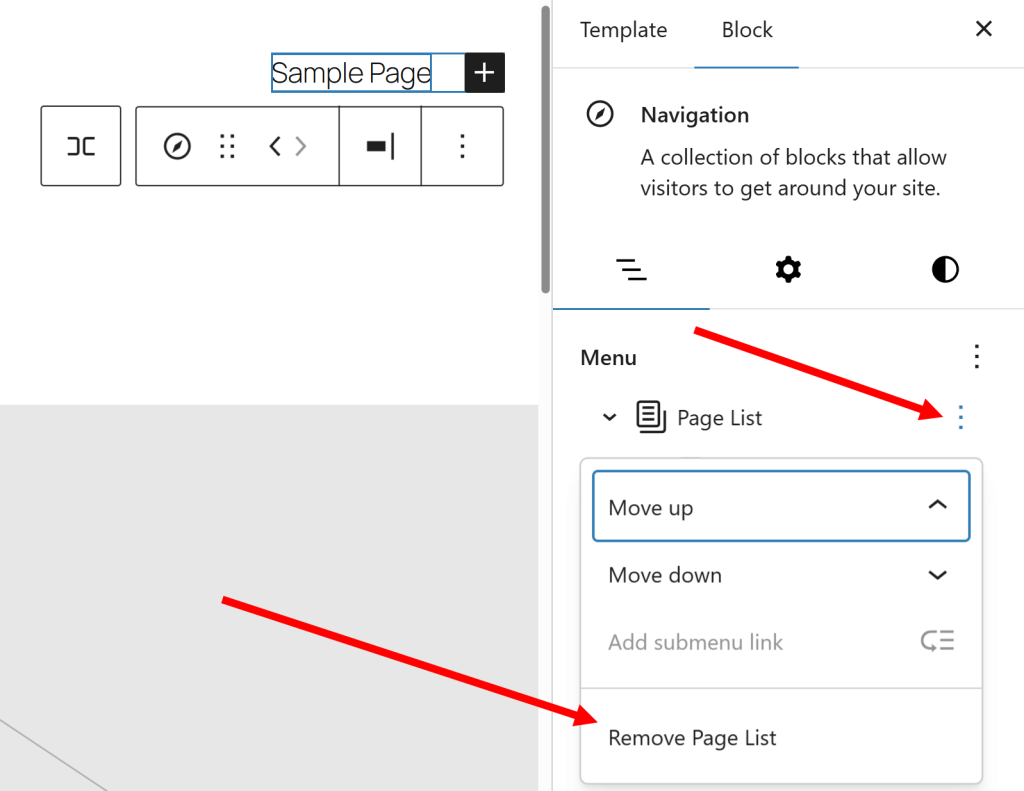
16)now You can see that there is no list in the navigation menu.
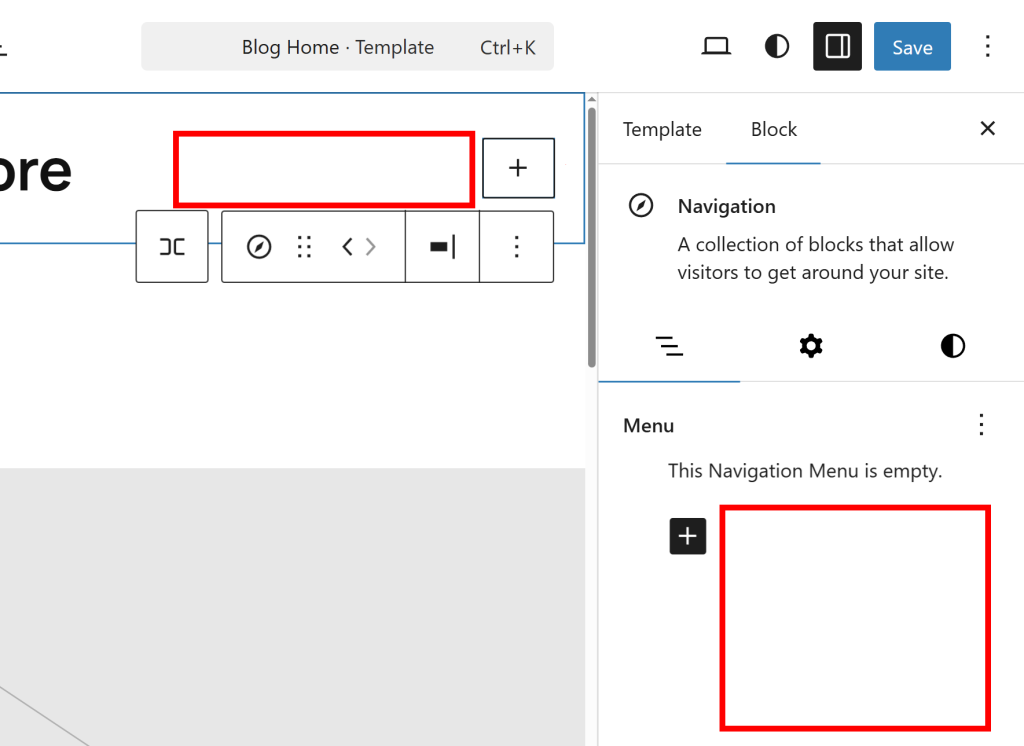
17)Click Add Block and select Page Link.
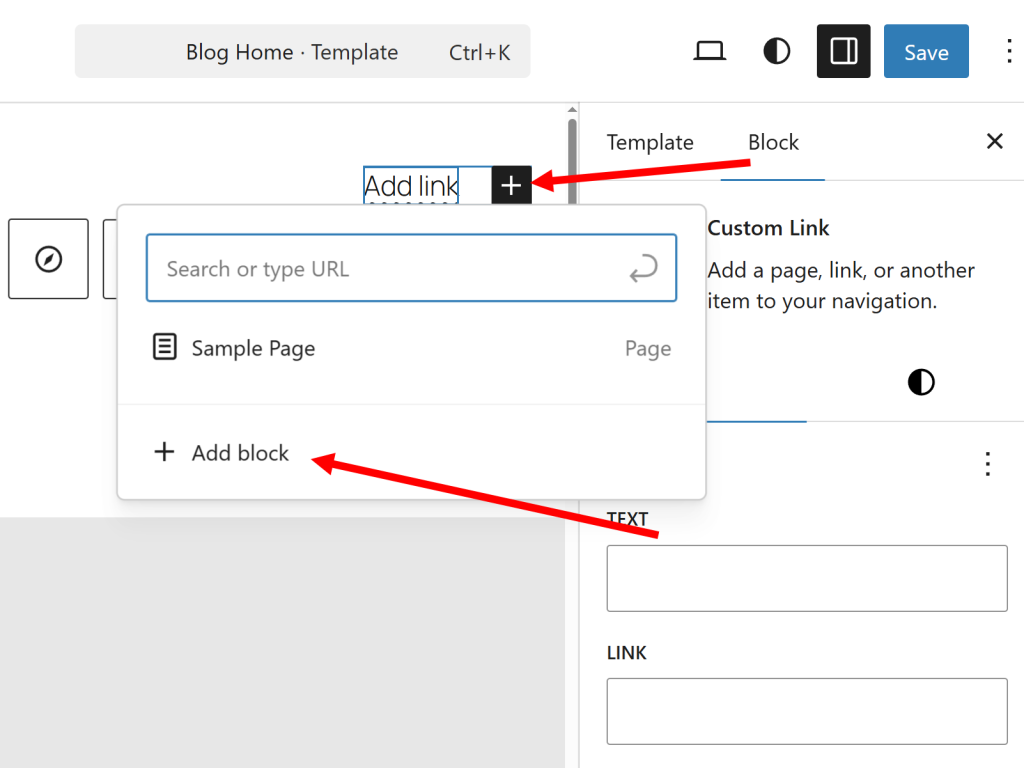
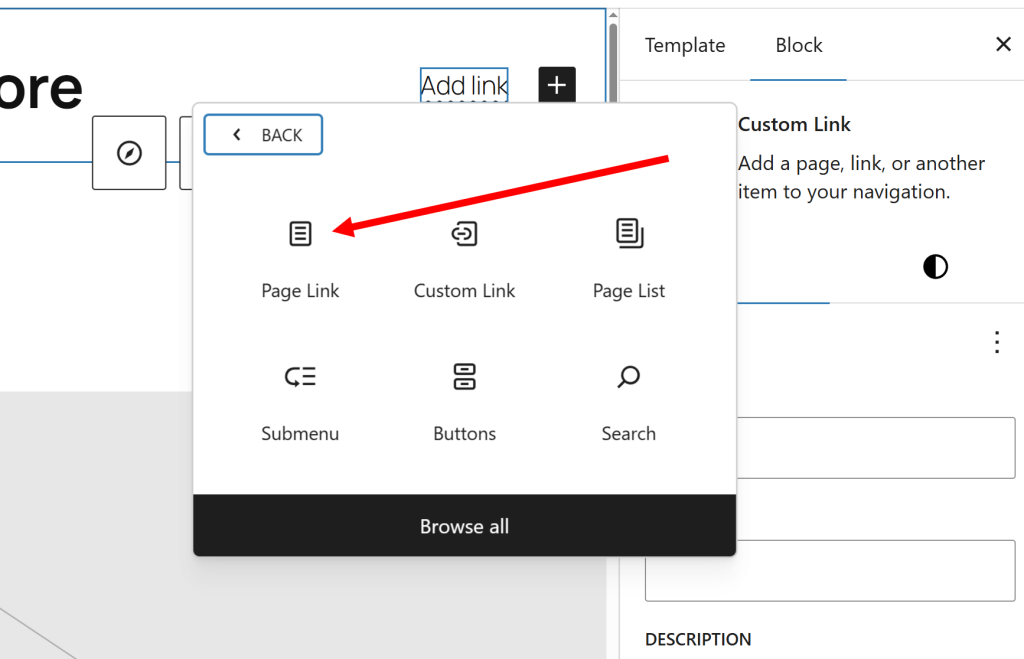
18) Enter a new page link URL or select one of the pages currently published in WordPress.
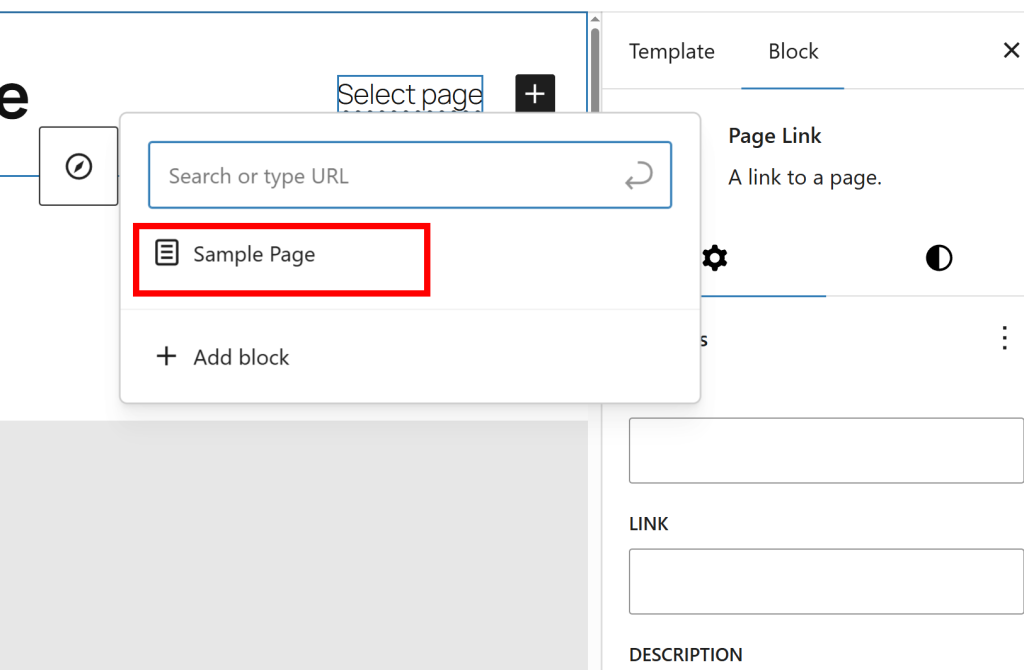
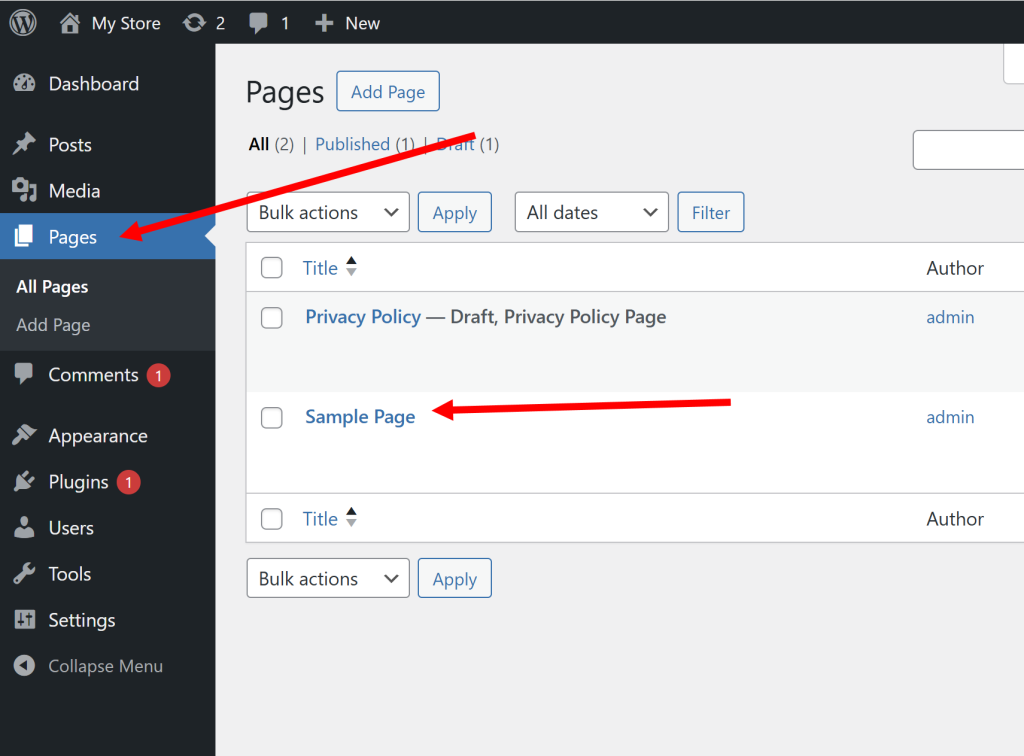
19) To check the list of currently published pages on the site, go to the pages menu on the WordPress admin page.
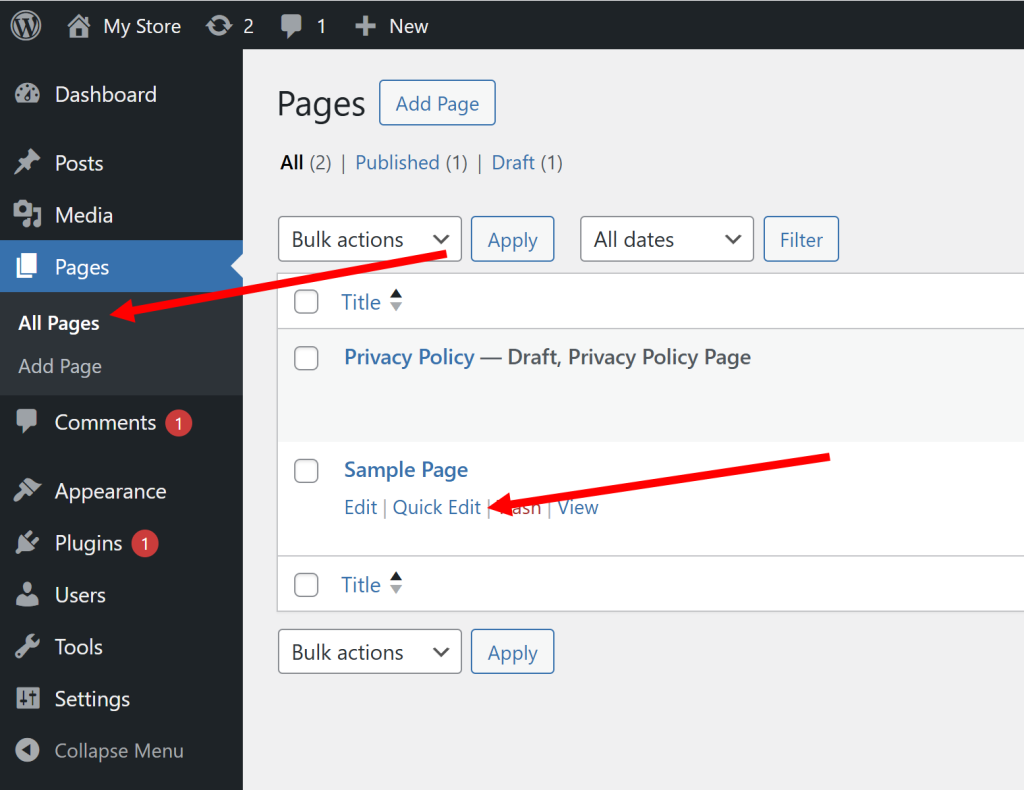
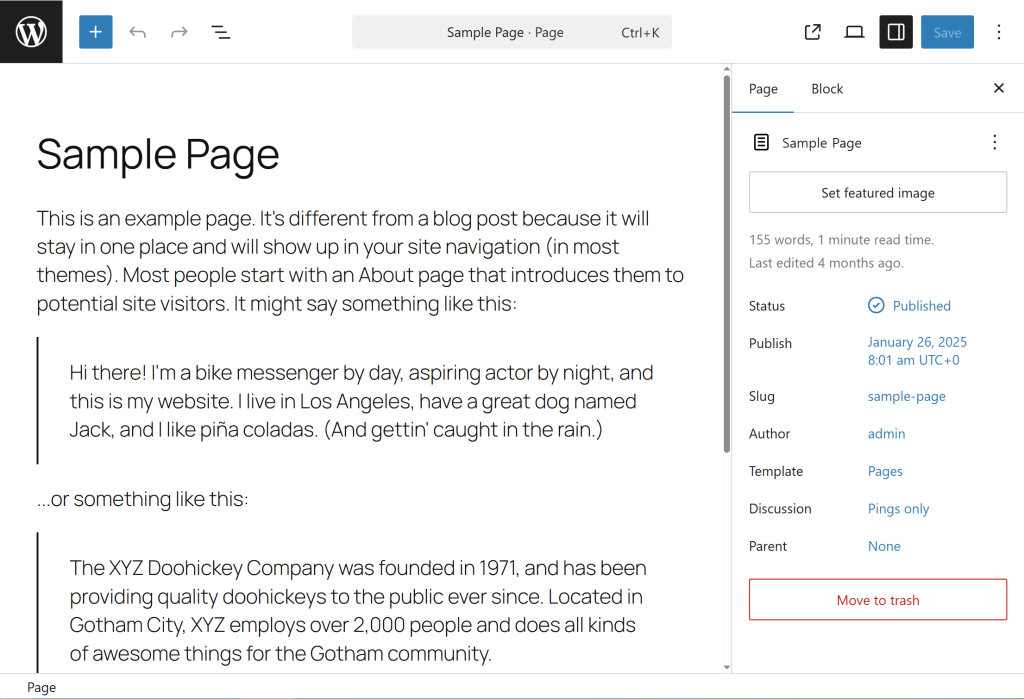
20) When you select a page, you can check the content to be displayed when you open that page.
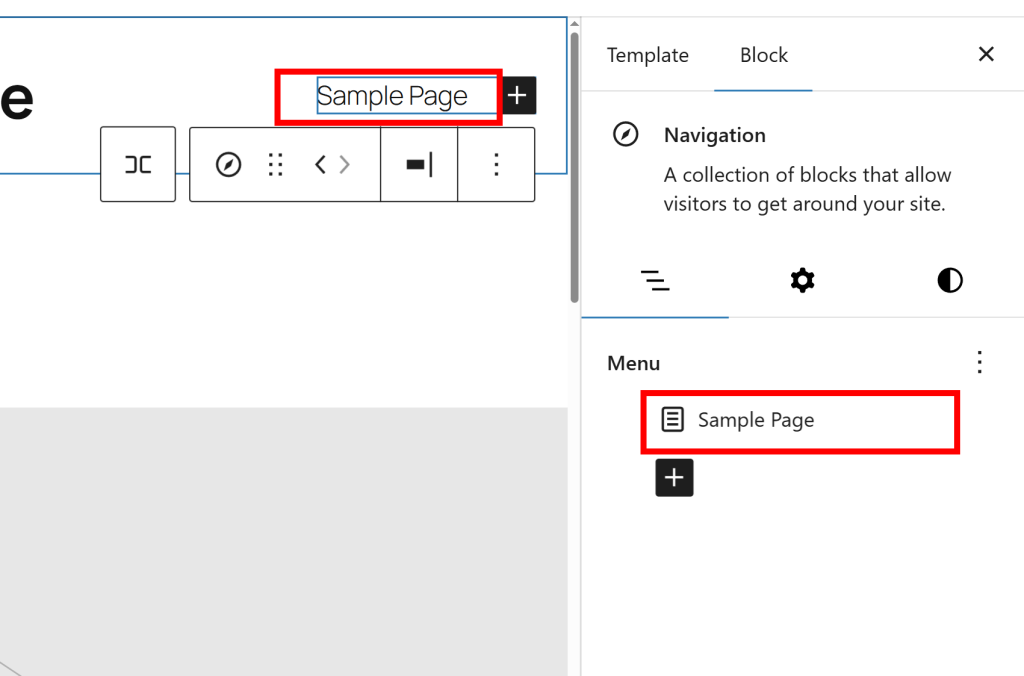
21) You can see that a menu containing page links has been added to the navigation.
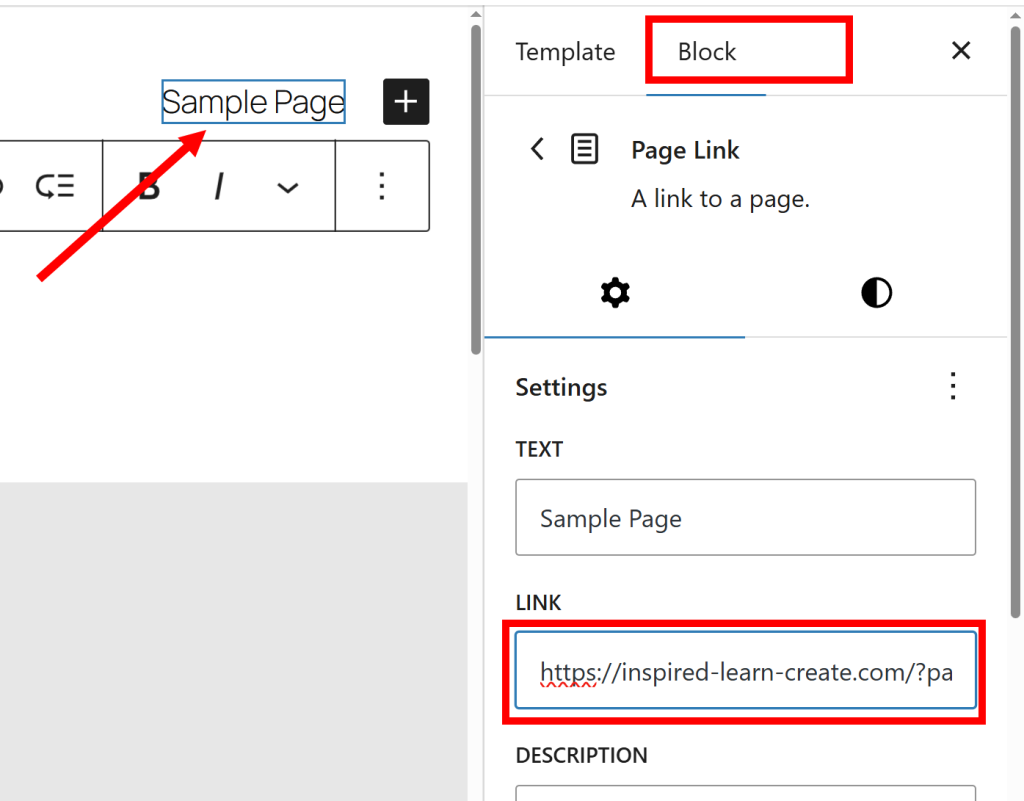
22) You can check the preset link address for that page in the page link of the added menu.
23) Add multiple new menus to the navigation in the same way.

24) Enter the name of the menu in the Text of the added menu.
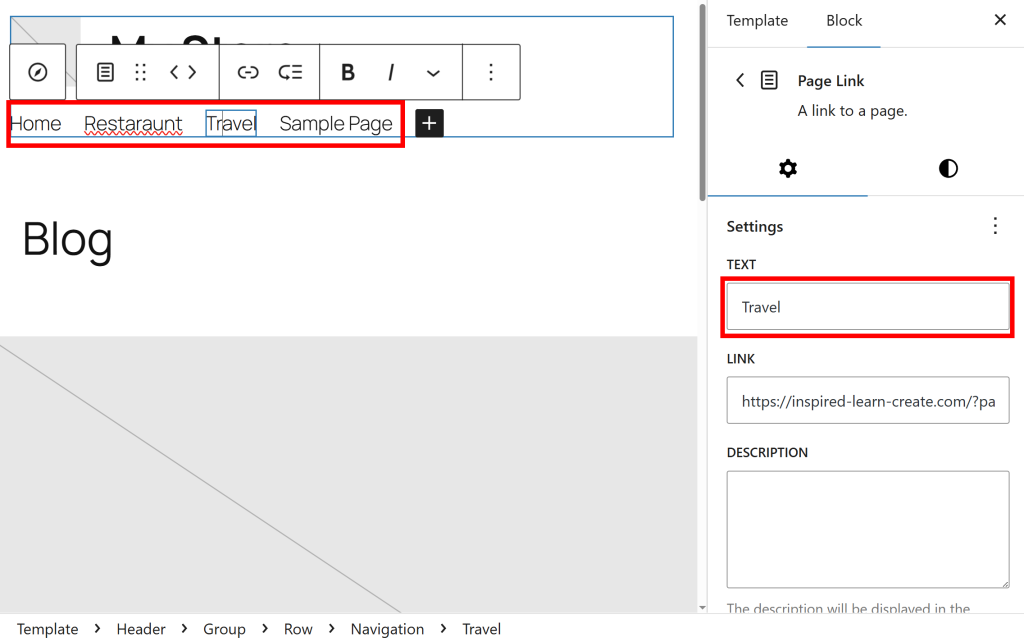
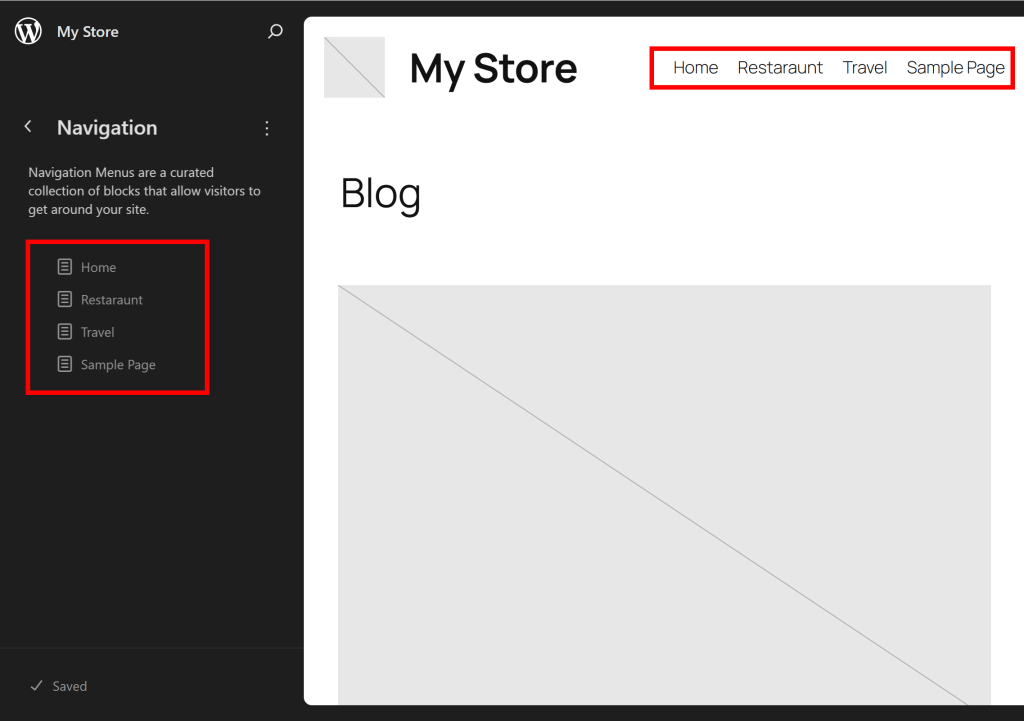
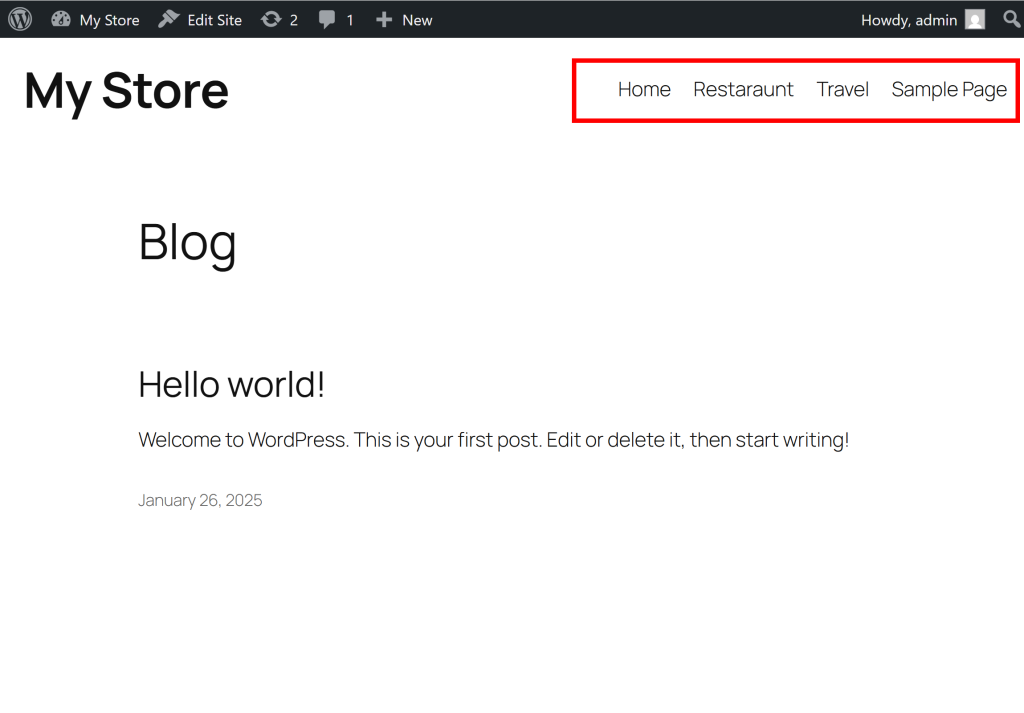
25) When you save the edited content in the block editor (save), you can see the additionally configured menu and check that it is displayed normally when you open the site.
Setting the page link address (Slug)
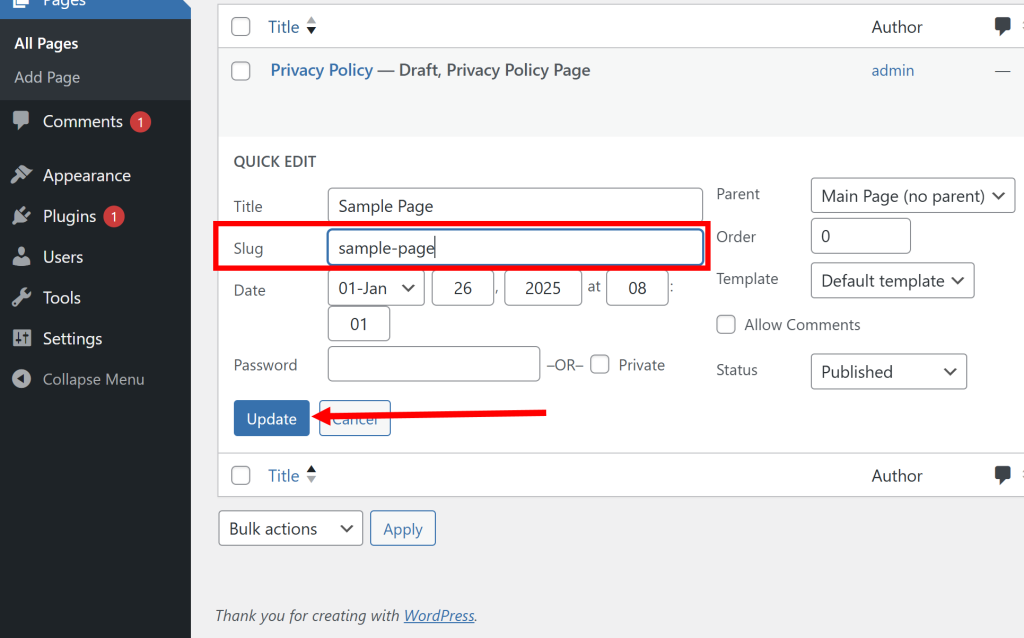
26) Go to all pages in the pages menu on the left side of the admin page. To set the link address, go to the quick edit of the page.
27) Enter the string you want to use for the page link in Slug and click Update.
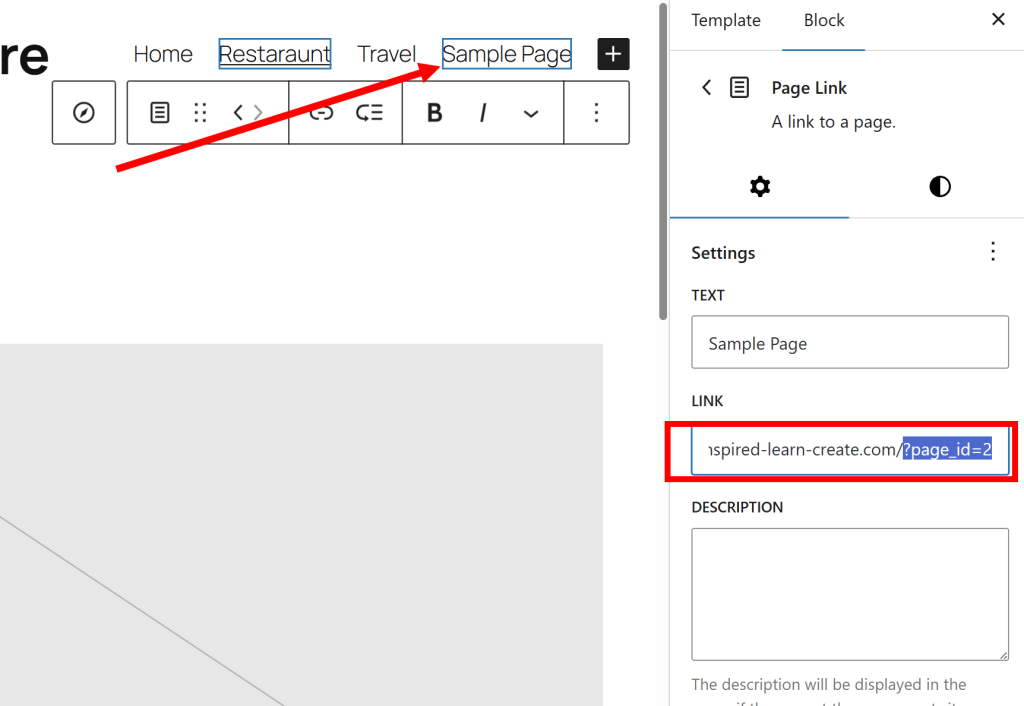
28) Select the page link in the navigation menu of the block editor and check the link address (LINK)
Check the string entered after site address/
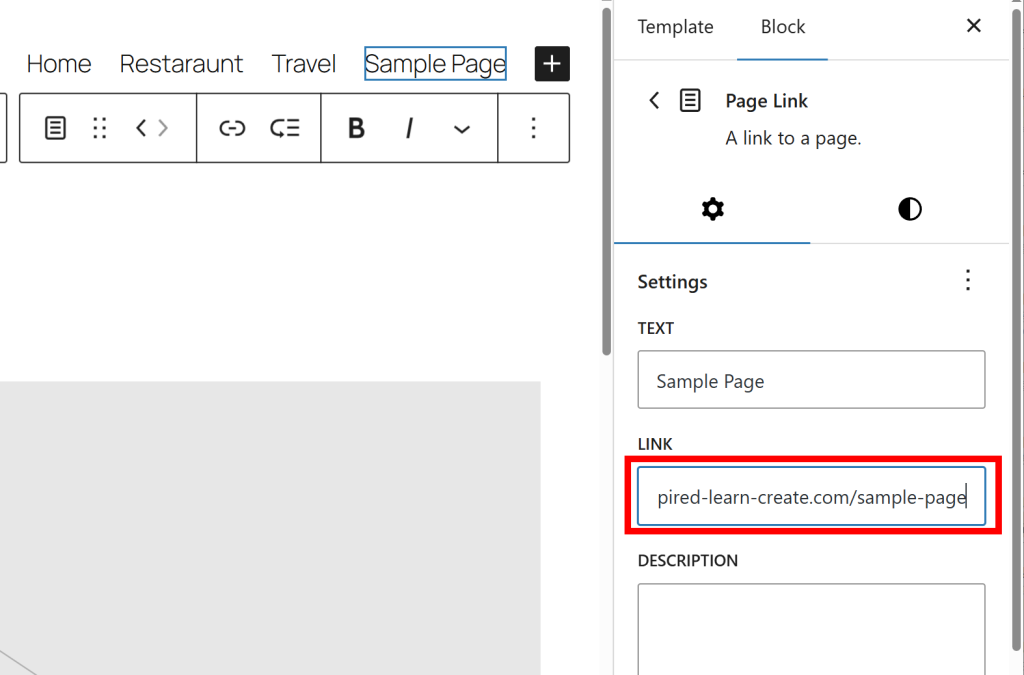
29) Enter the Slug of the page after site address/ and save.
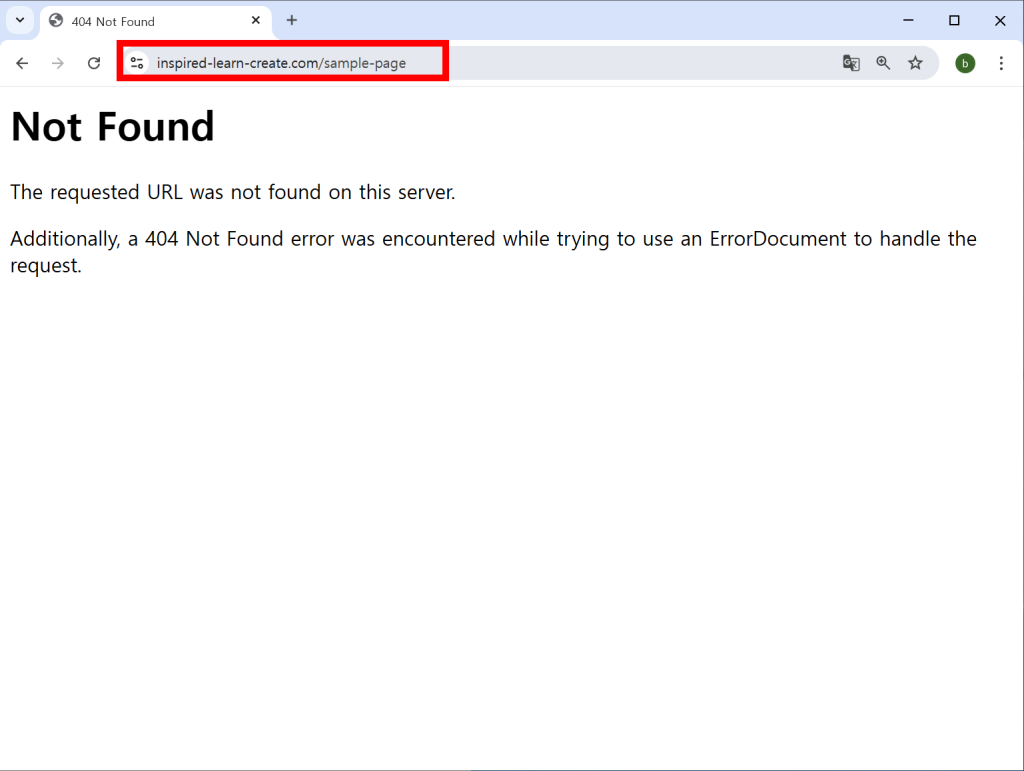
30) Enter the address of the page in the browser. You can see that the page on the site is not displayed properly (404 Not Found)
31) Go to Permalinks in the Settings menu on the left side of the WordPress admin page.
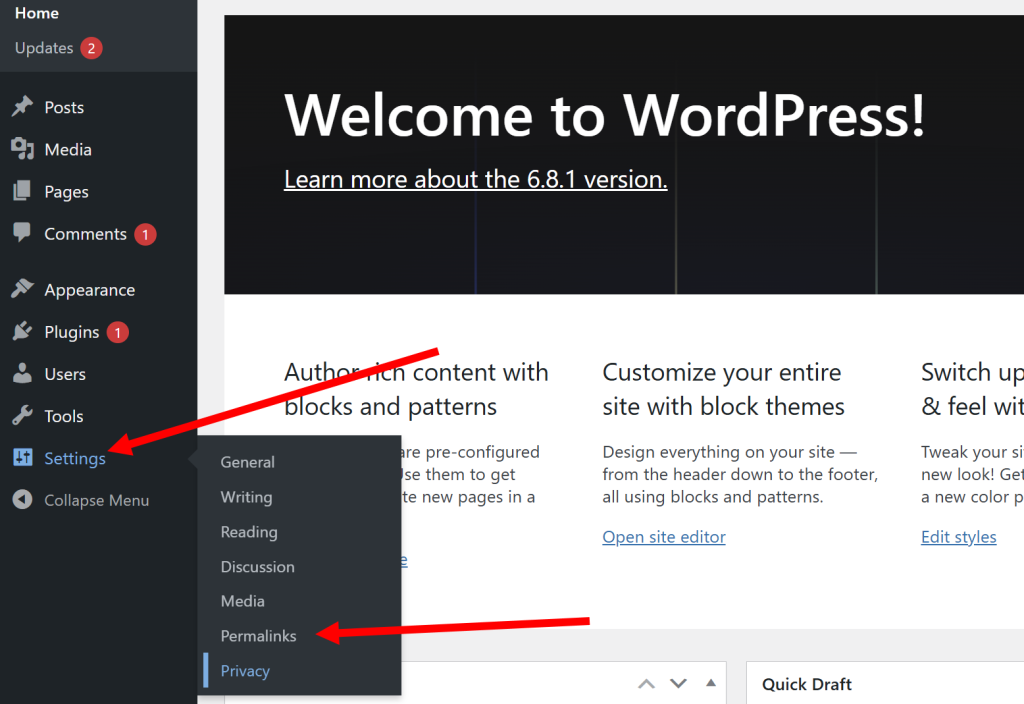
32) You can see that the default setting for permalink structure is Plain.
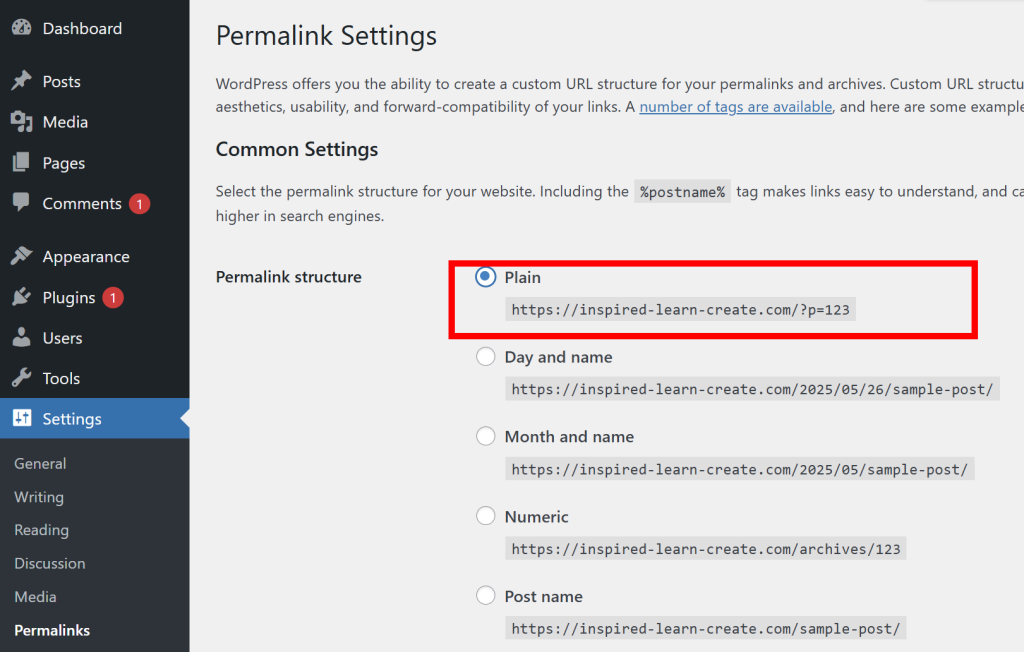
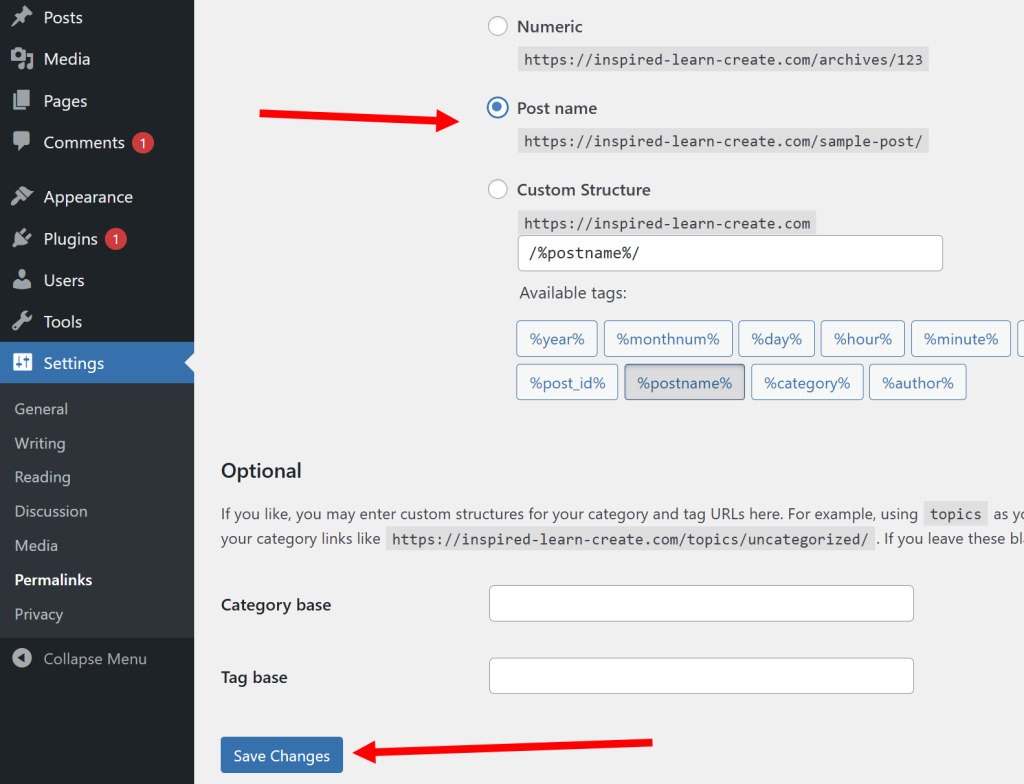
33) Change it to post name and save (save changes)
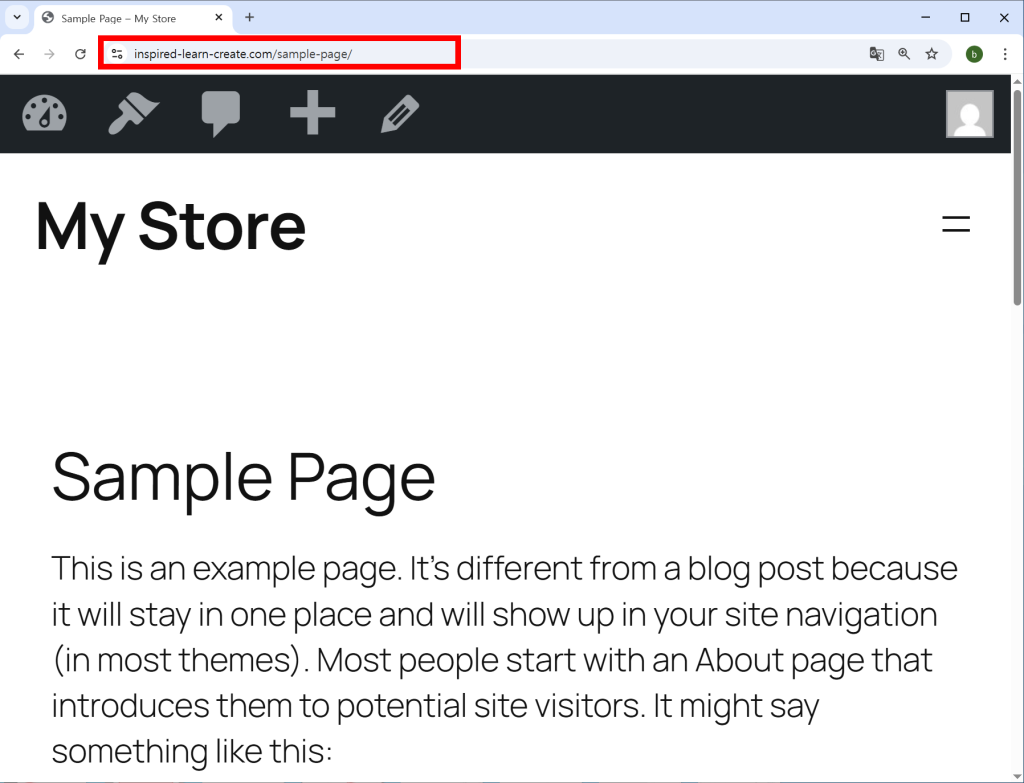
34) You can see that the page on the site is displayed properly.
![[WordPress]Sign up for Fastcomet and set up WordPress](https://inspired-learn-create.com/wp-content/uploads/2025/06/2025-01-26_15-28-08-1024x588.jpg)
![[WordPress] Setting Up Domain SSL (Auto SSL) on Fastcomet Web Hosting Site](https://inspired-learn-create.com/wp-content/uploads/2025/06/2025-01-26_17-34-40-1024x611.jpg)