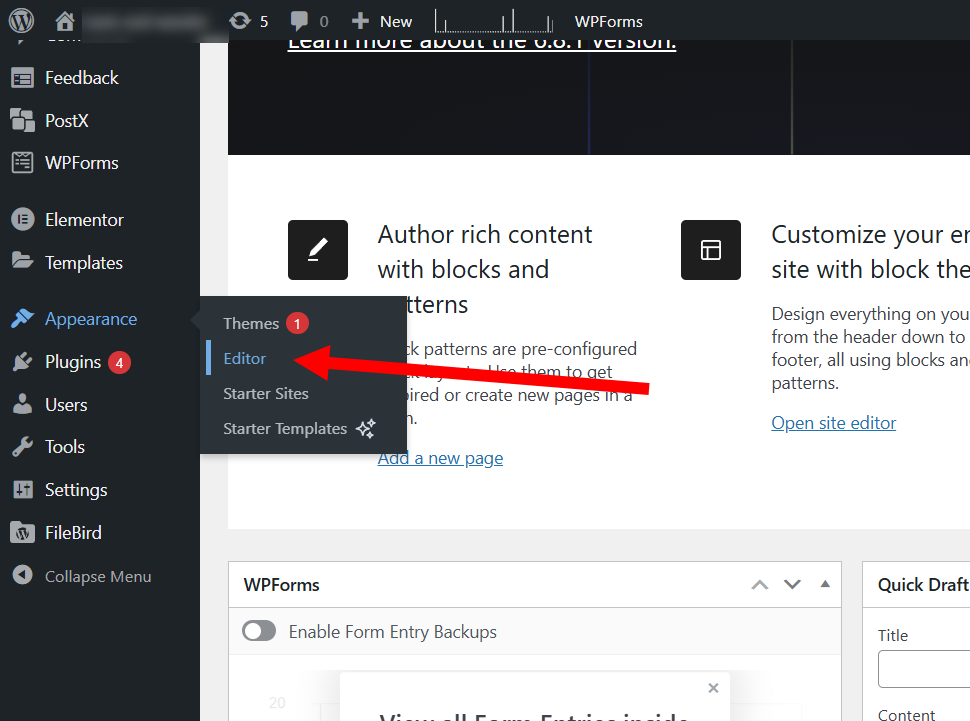
1) Go to the editor of appearance in the WordPress dashboard.
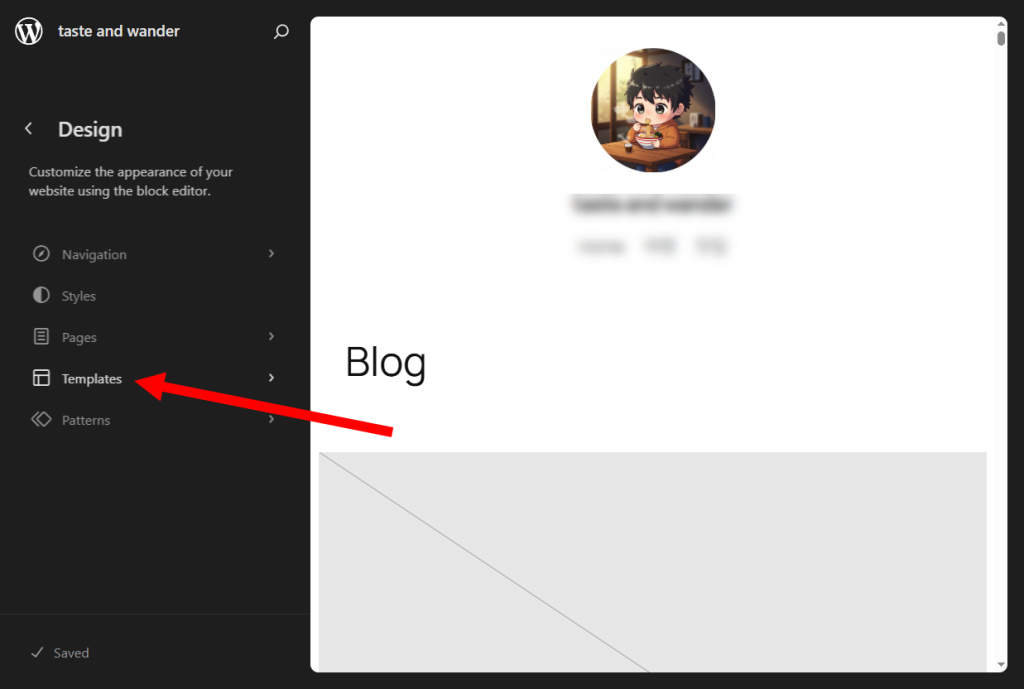
2) Go to Templates in the site block editor.
Enable the use of featured images in individual posts (single post)
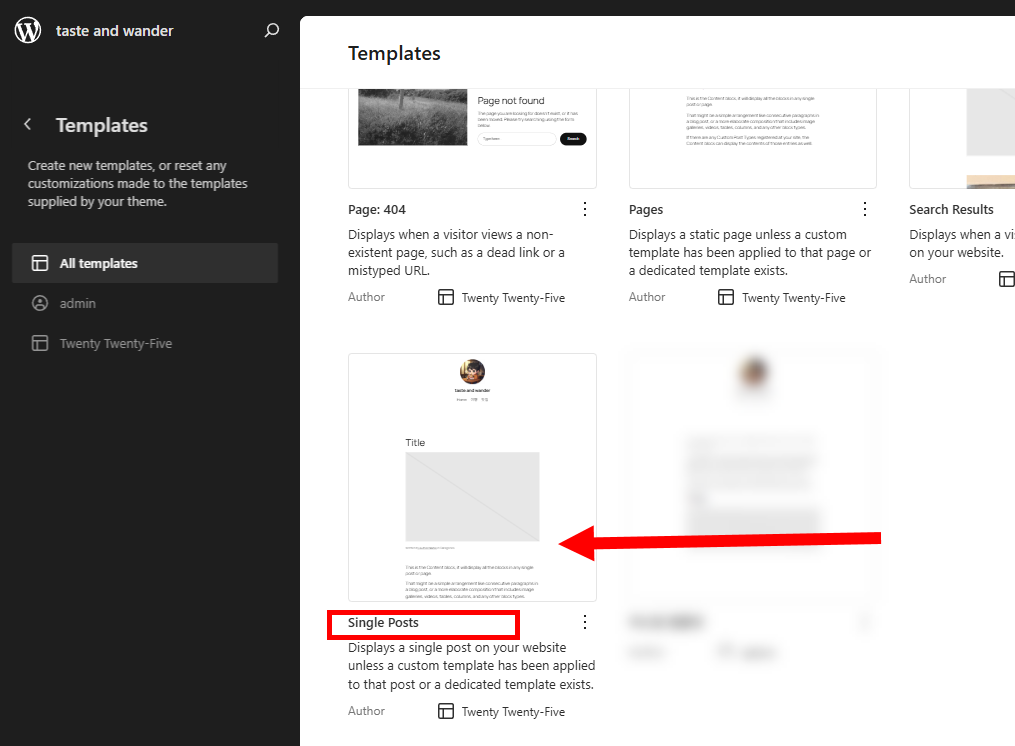
3) Select the template for which you want to enable thumbnails and featured images. To enable the use of featured images for individual posts, select the single post template.
4) You can check the preview template of a single post in the block editor of the site.
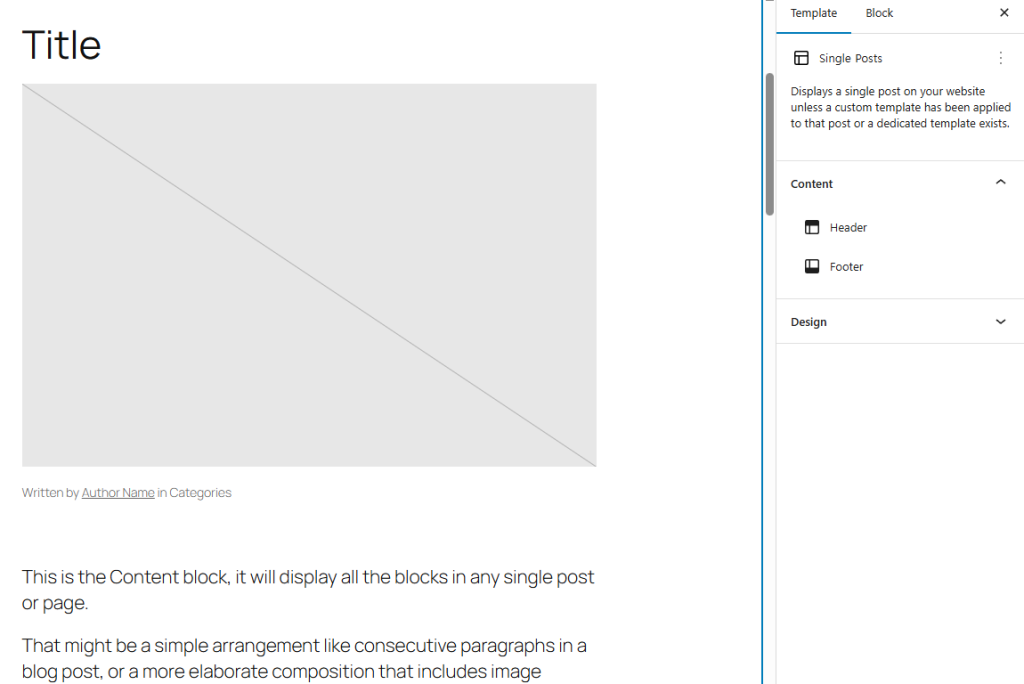
5) You can see that the featured image block exists and is enabled in the preset templates.
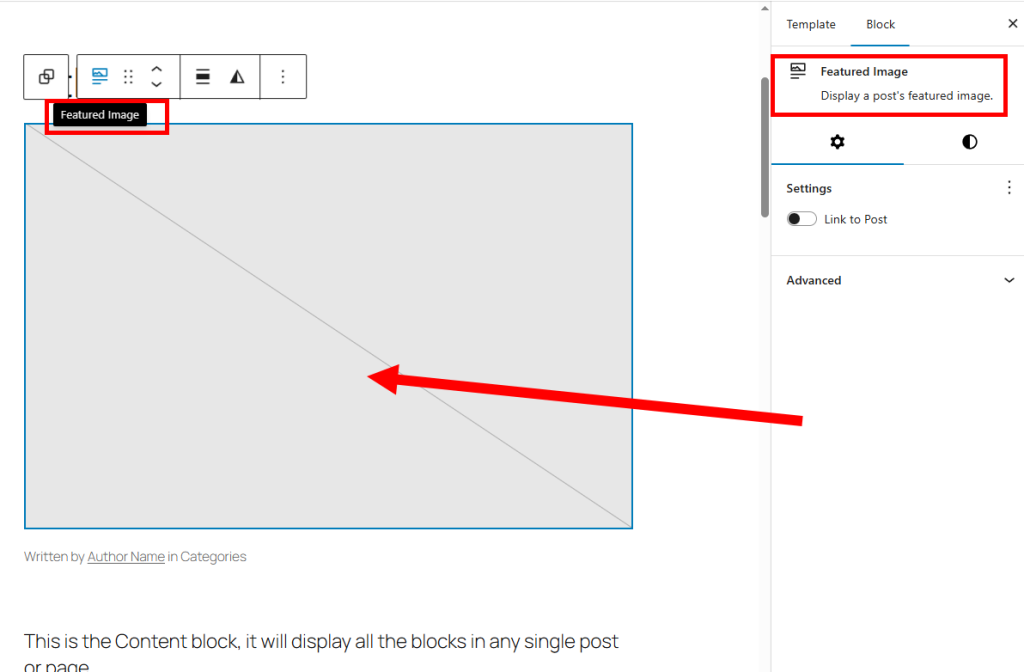
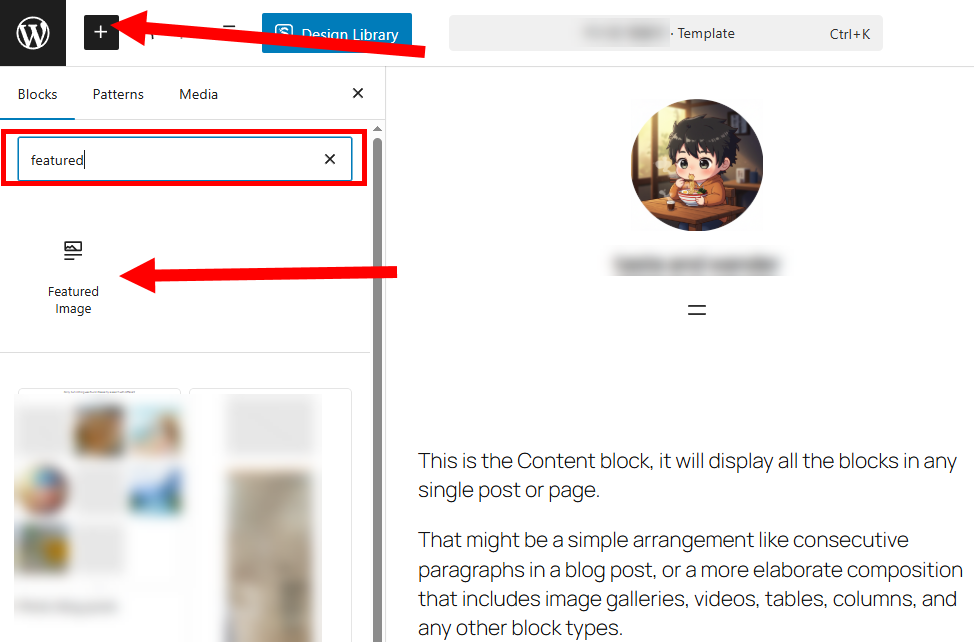
6) To add a featured image block, search and add featured image in the Add block on the top left.
Enable the use of featured images in the list of latest posts on the Blog Home
7) To enable the featured image in the list of latest posts displayed on the Blog Home, select the Blog Home template.
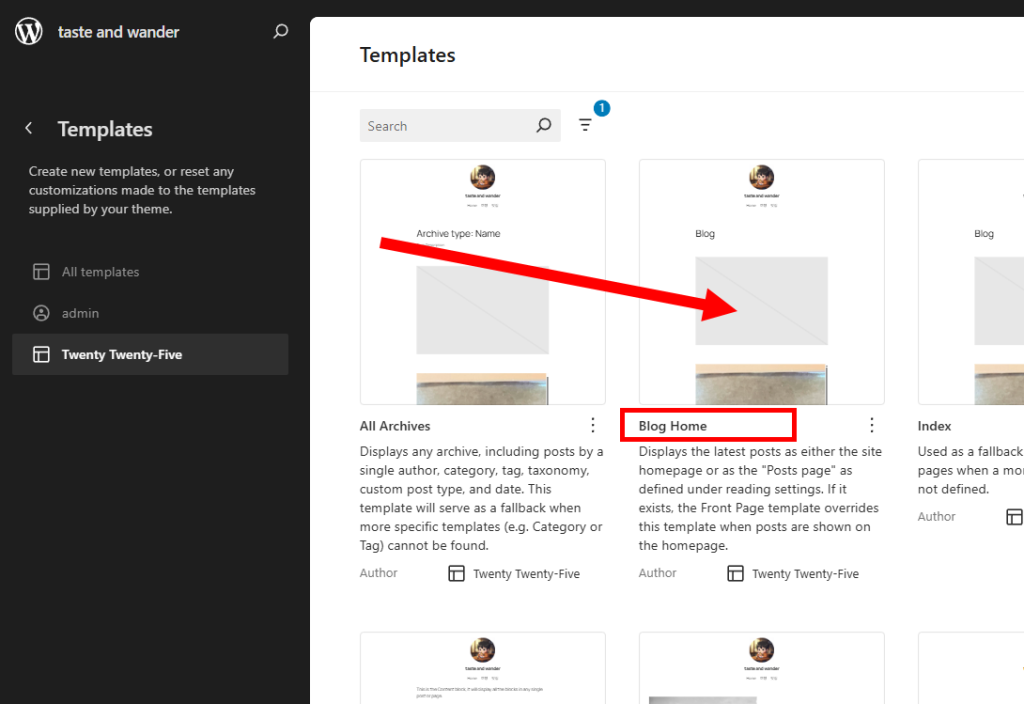
8) You can check the list of latest posts on the Blog Home and the preview of the template.
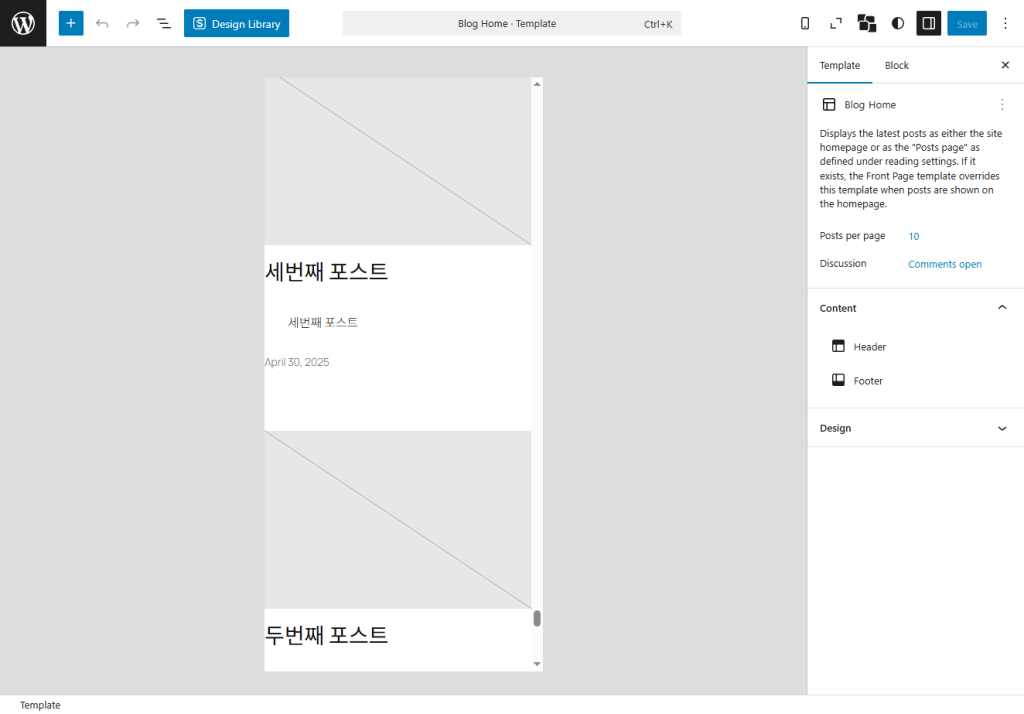
9) You can see that the featured image block exists and is enabled.
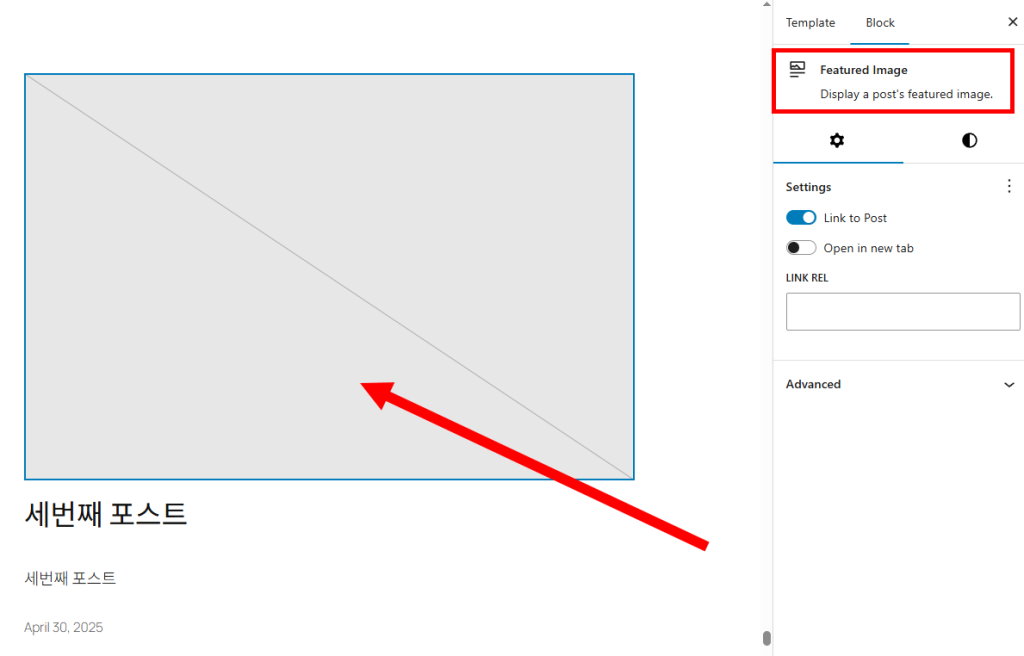
Set featured image for post
In order to display the featured image enabled in the template normally on the site, the featured image must be set for each post.
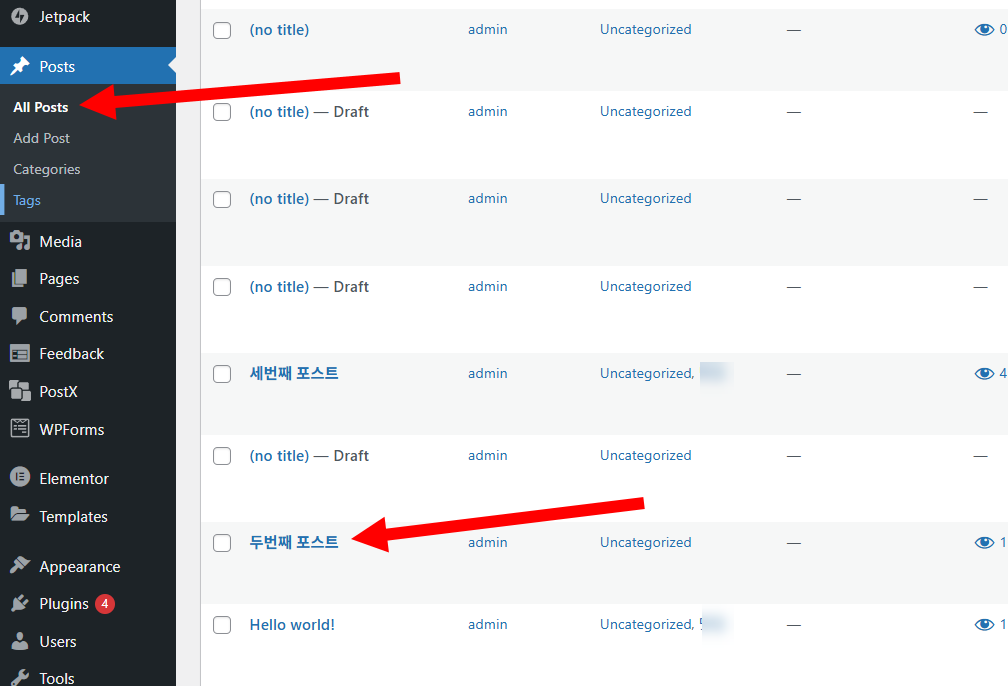
10) In the Posts menu of the dashboard, go to Edit for the post for which you want to set the featured image in All Posts.
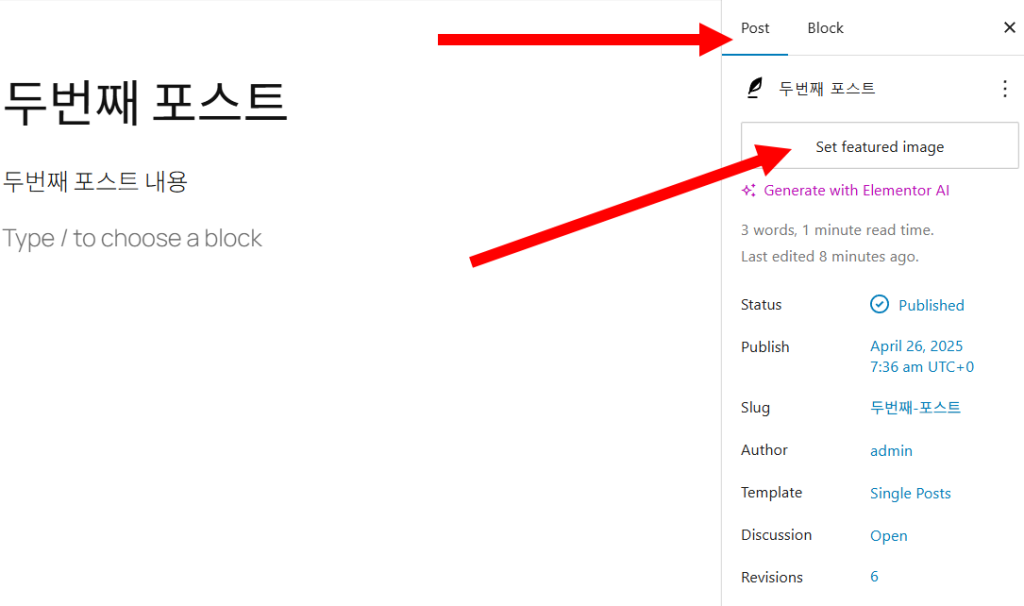
11) Click Set featured image in the Post on the top right.
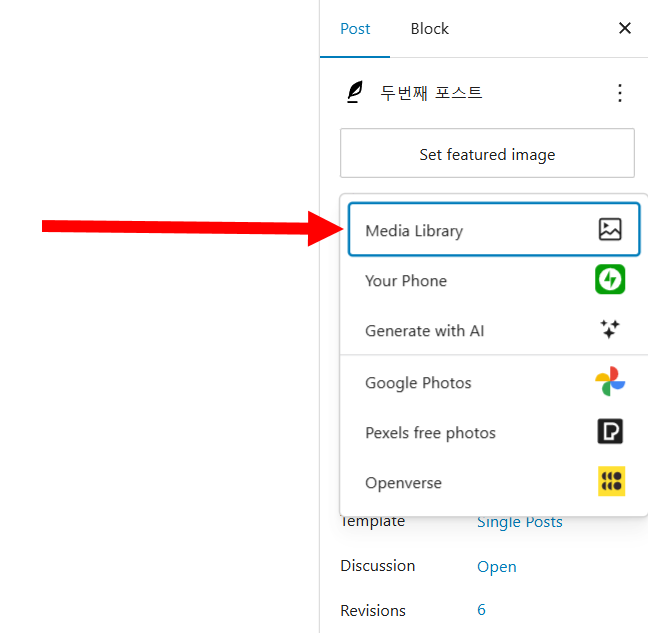
12) To add an image from the media library, select media library.
13) Select an image from the library and click Set featured image.
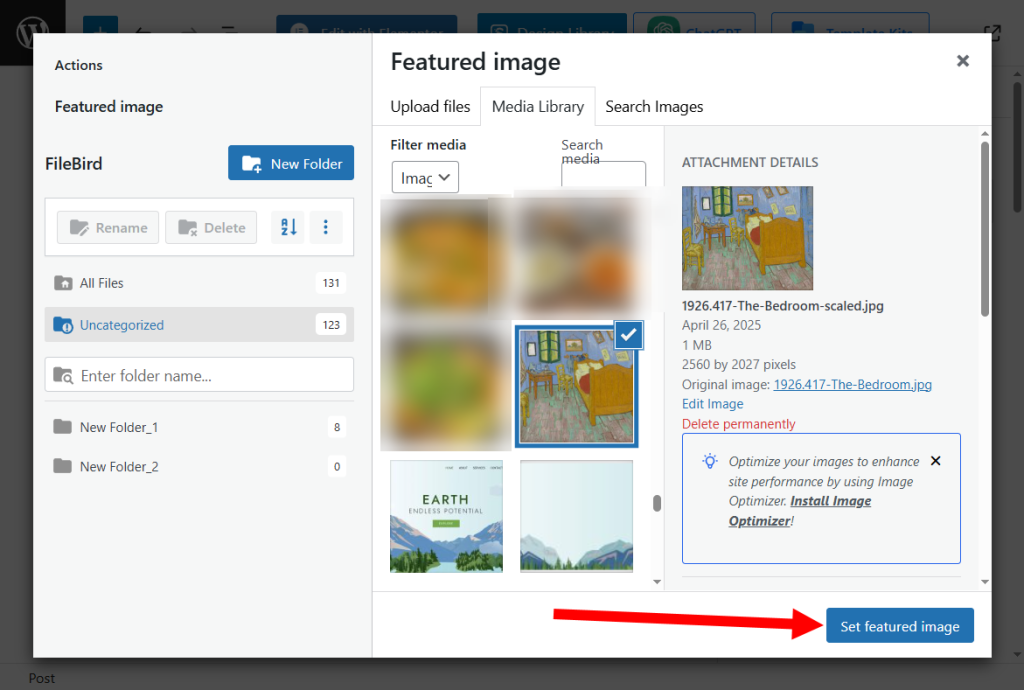
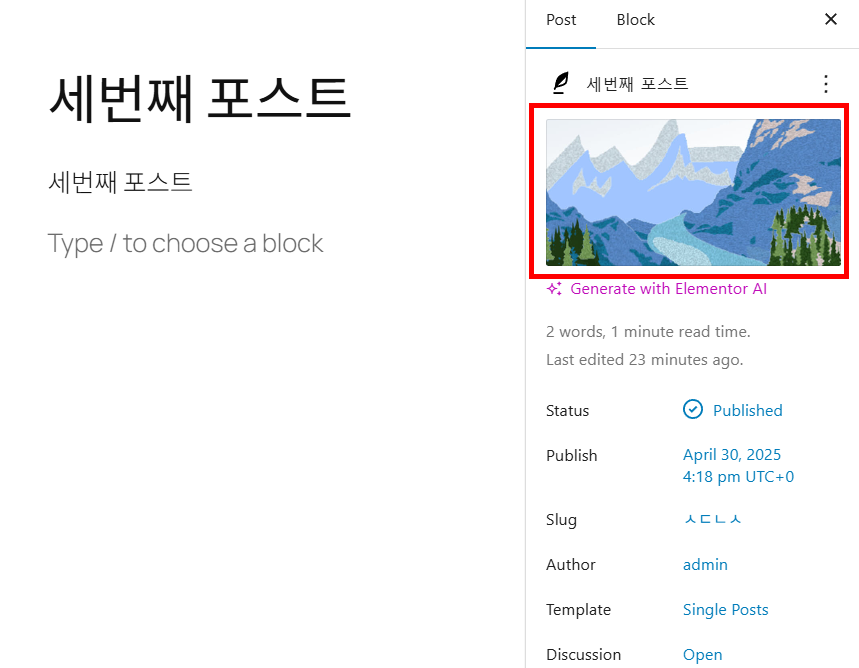
14) Check that the image is set and save it.

15) Set the featured image for all posts in the same way.
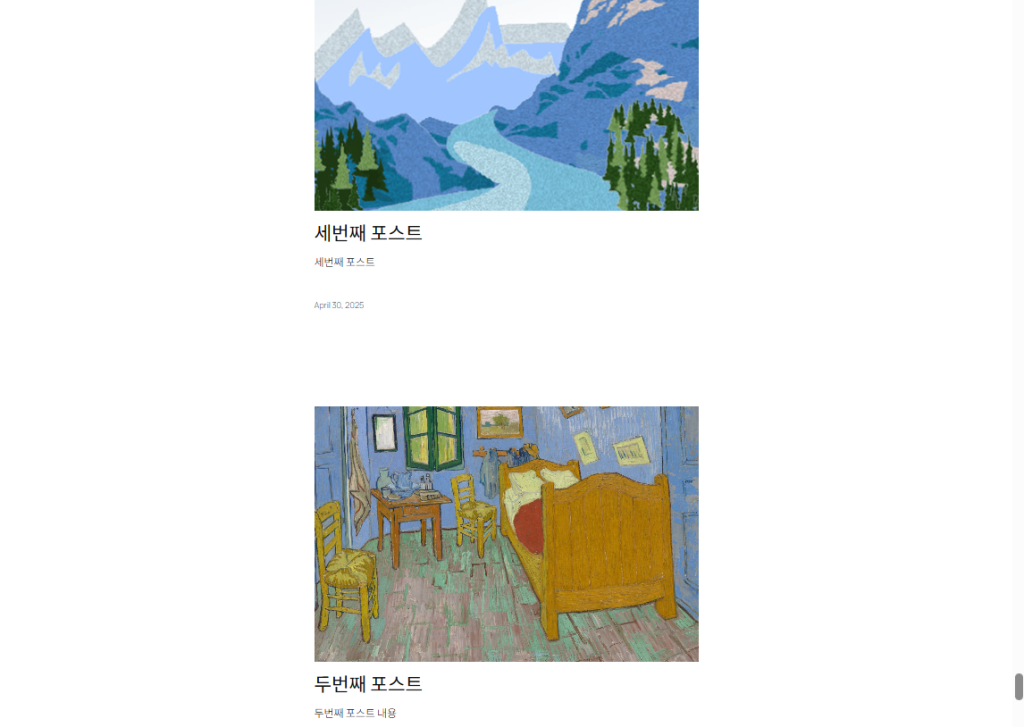
16) You can check that the featured image is displayed normally in the site view.
![[WordPress]Sign up for Fastcomet and set up WordPress](https://inspired-learn-create.com/wp-content/uploads/2025/06/2025-01-26_15-28-08-1024x588.jpg)
![[WordPress] Setting Up Domain SSL (Auto SSL) on Fastcomet Web Hosting Site](https://inspired-learn-create.com/wp-content/uploads/2025/06/2025-01-26_17-34-40-1024x611.jpg)