Reflection Probes allow you to capture the reflection information of the surrounding environment to create realistic reflections on the surface of an object.
https://docs.unity3d.com/kr/530/Manual/class-ReflectionProbe.html
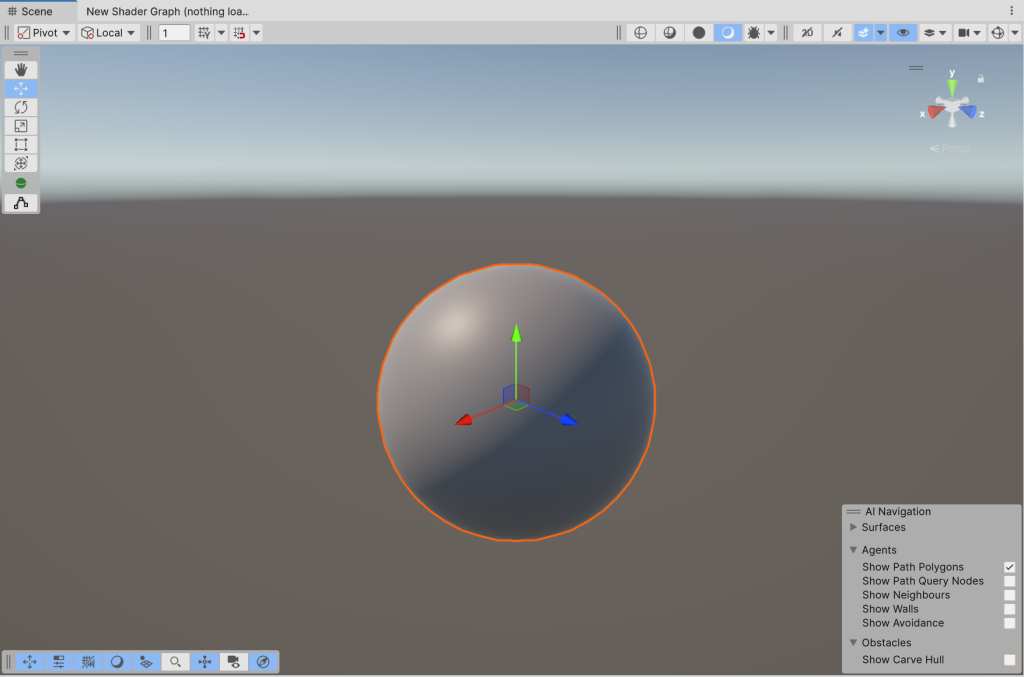
1) Add a 3D object to the scene.
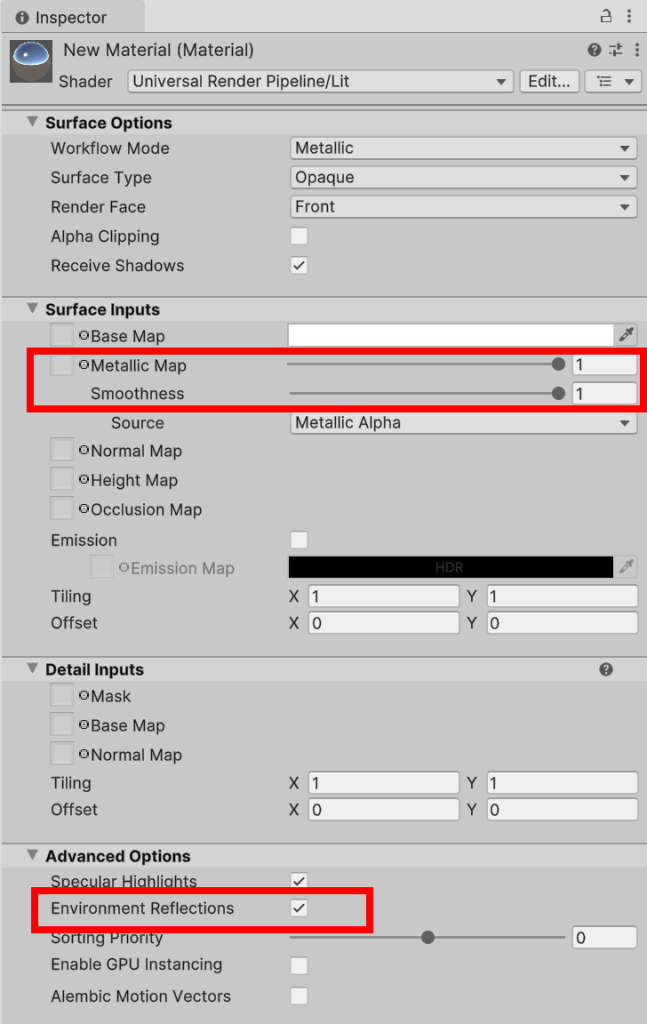
2) Create a new material (URP/Lit) and set it to a highly reflective metal surface. Make sure the environment reflections property is checked.
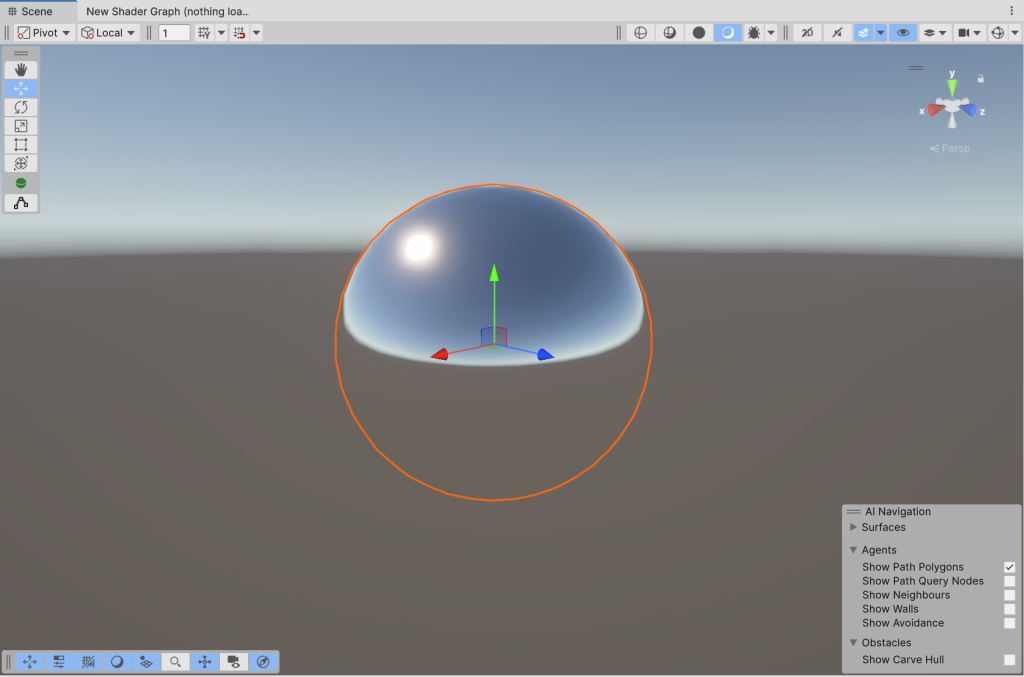
3) Assign it to an object in the scene. You can see that the surface of the object reflects the surrounding environment in the scene.
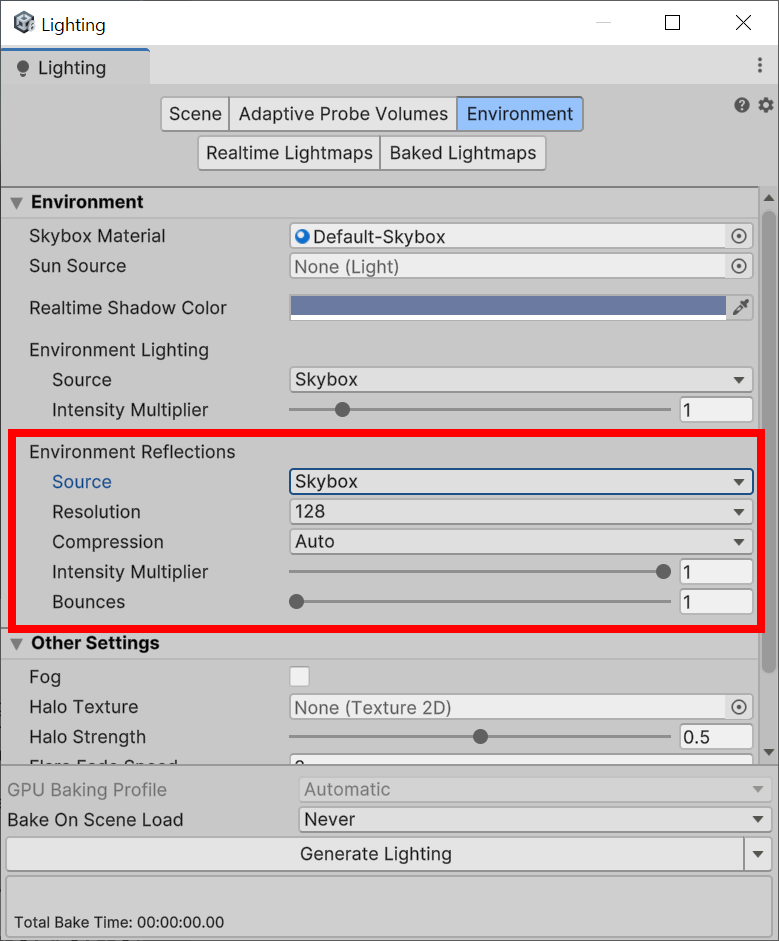
4) In the Environment section of the Lighting window, you can see that the environment reflections are set to use the skybox as their source.
5) Add and configure an object in the scene.
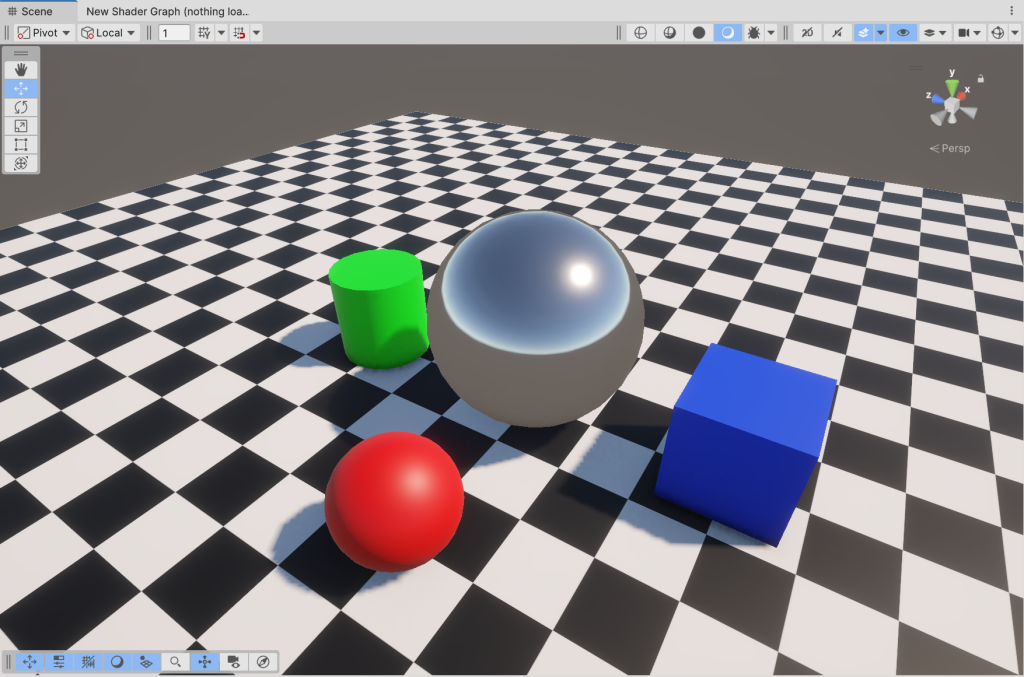
6) Create a reflection probe object in the scene.

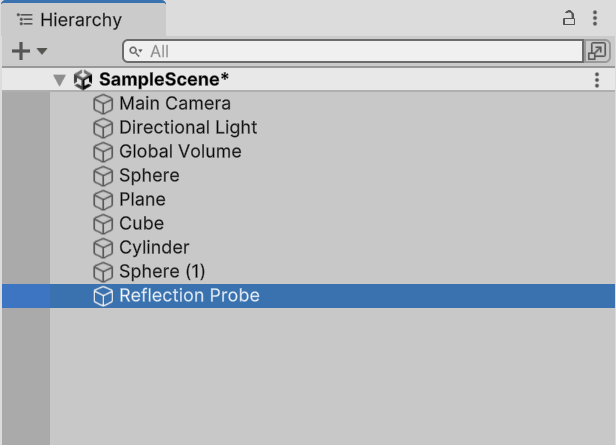
7) The reflection probe captures and renders the surrounding environment in the form of a cubemap at that location and stores it, and objects affected by this probe can express the surrounding environment reflection based on the captured information.
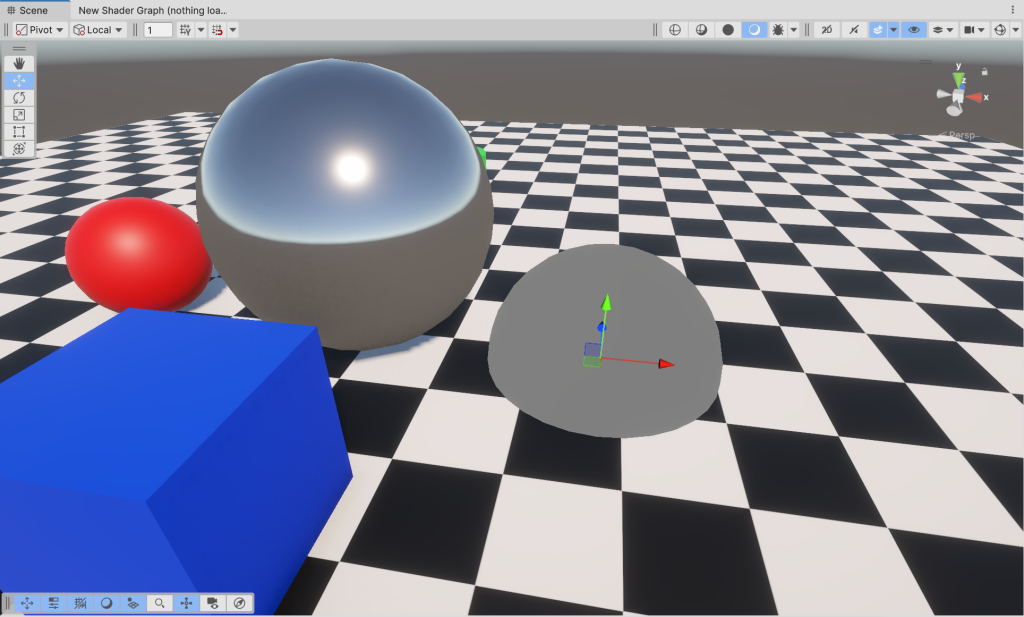
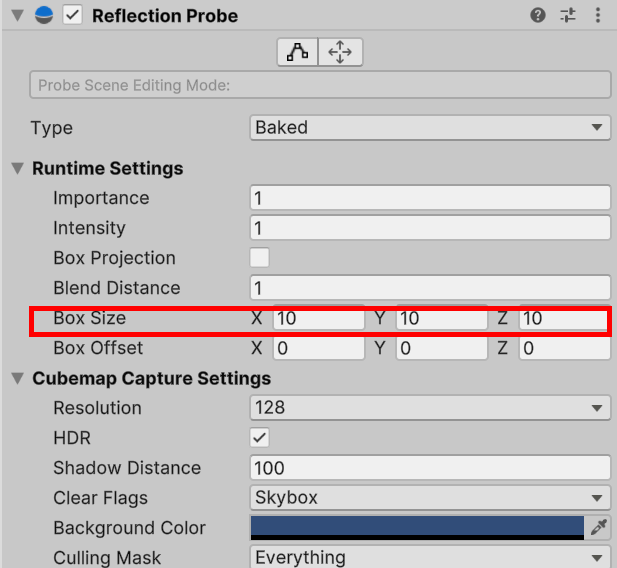
8)Sets the box size of the reflection probe.
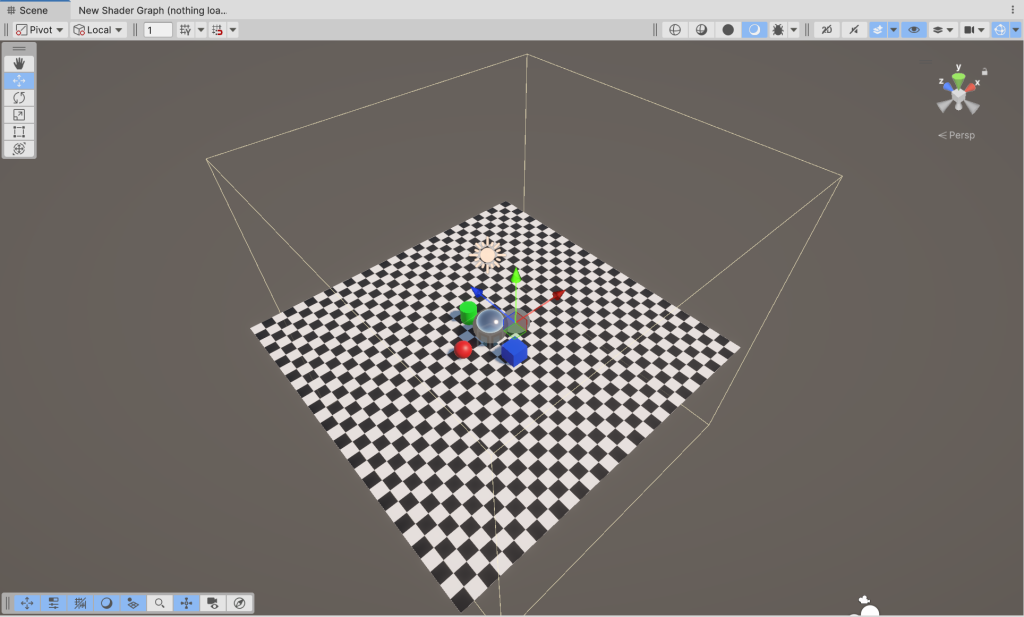
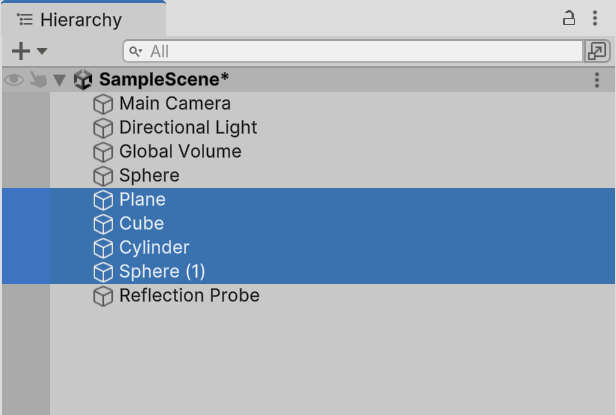
9)Select objects in the scene to be included in the environment reflections. These objects will be included in the capture target of the reflection probe.
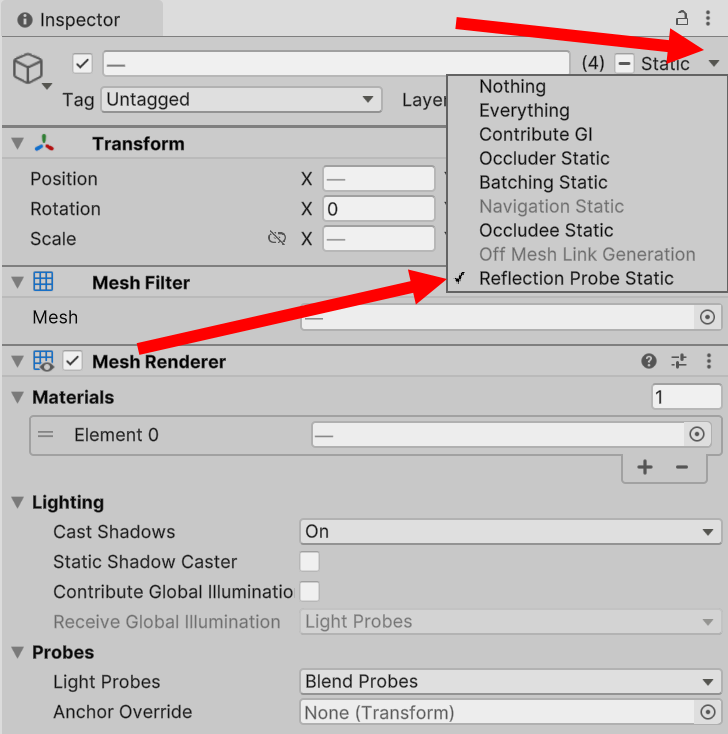
10) Check reflection probe static in the upper right corner of the inspector.
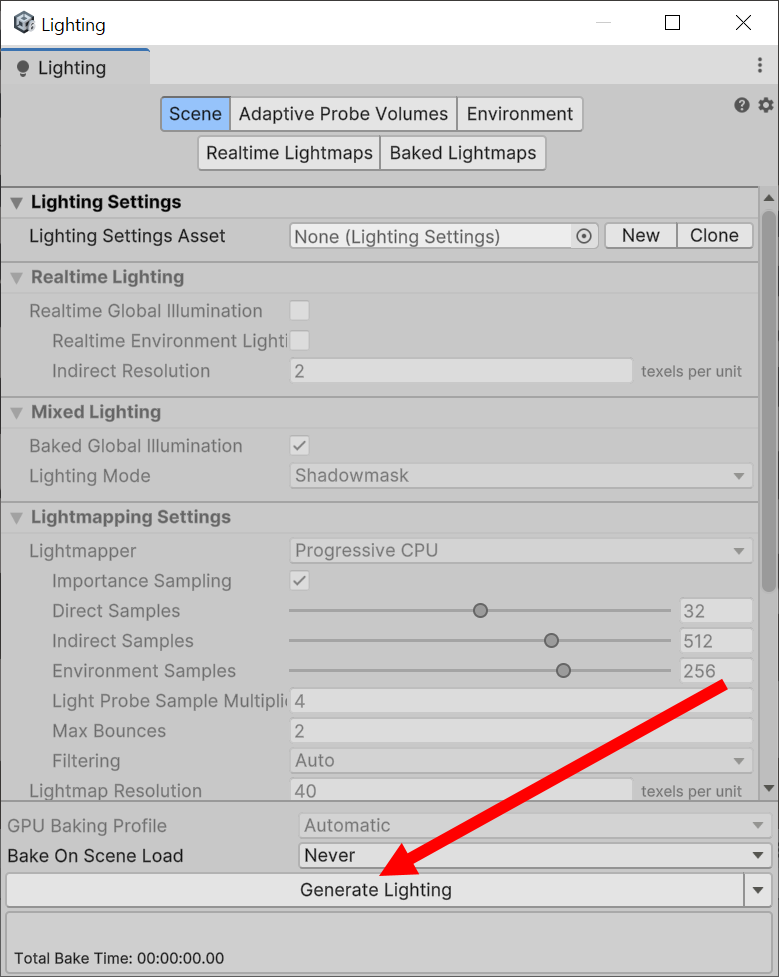
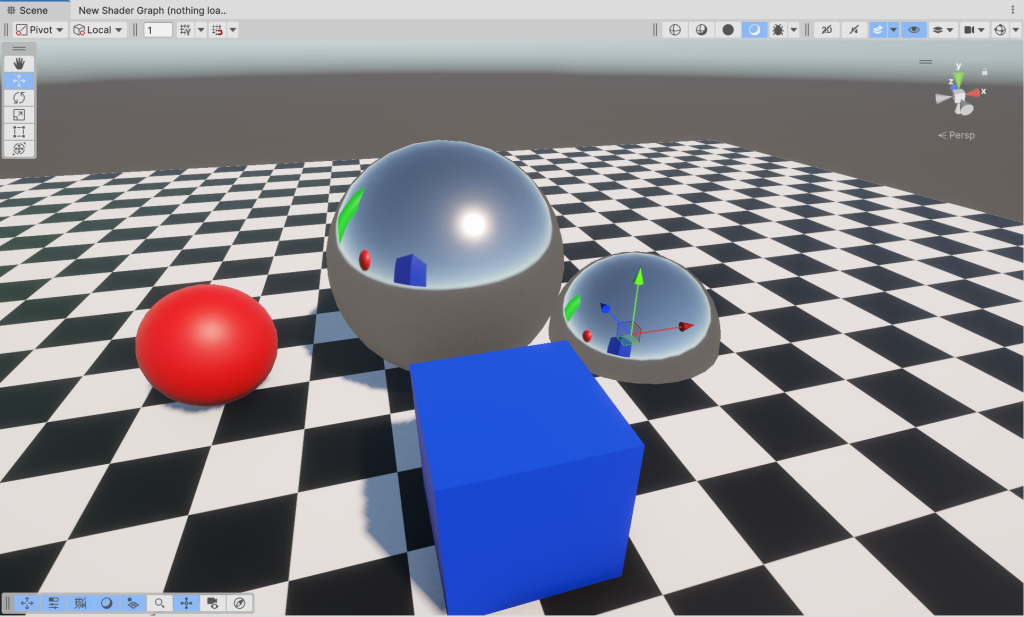
11) Click generate lighting in the scene in the Lighting window.
12) You can see that the reflection probe captures the surrounding environment and reflects the surrounding environment on the surface of the material.
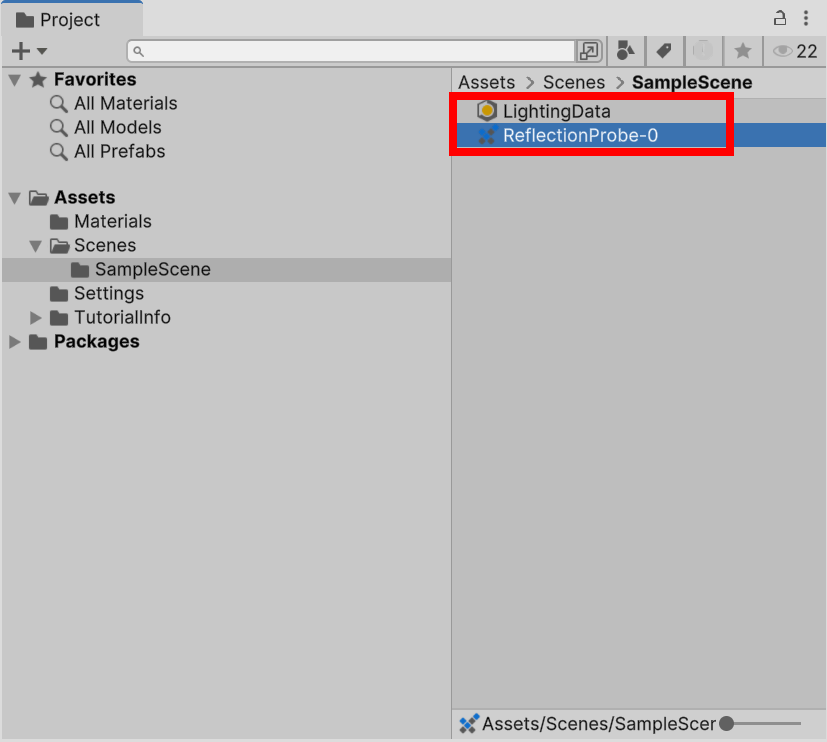
13) You can see that the reflection probe data for the scene has been generated in the project.
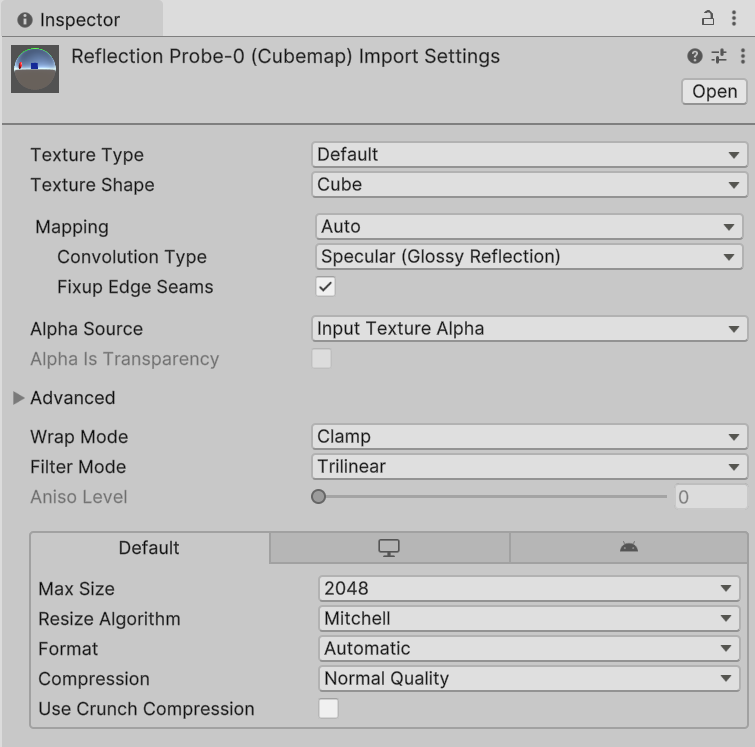
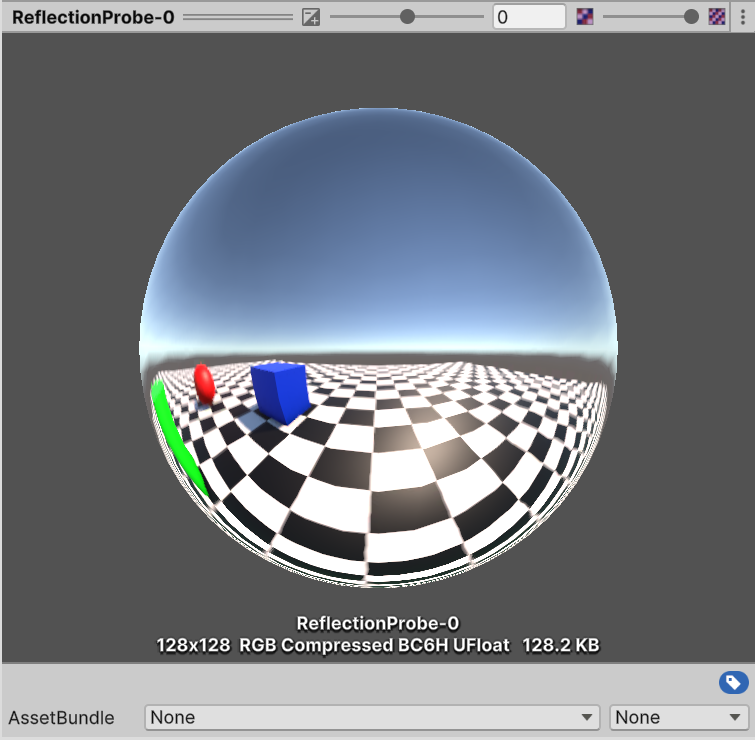
14) The reflection probe data is displayed in the preview at the bottom of the inspector in the form of a cubemap texture.
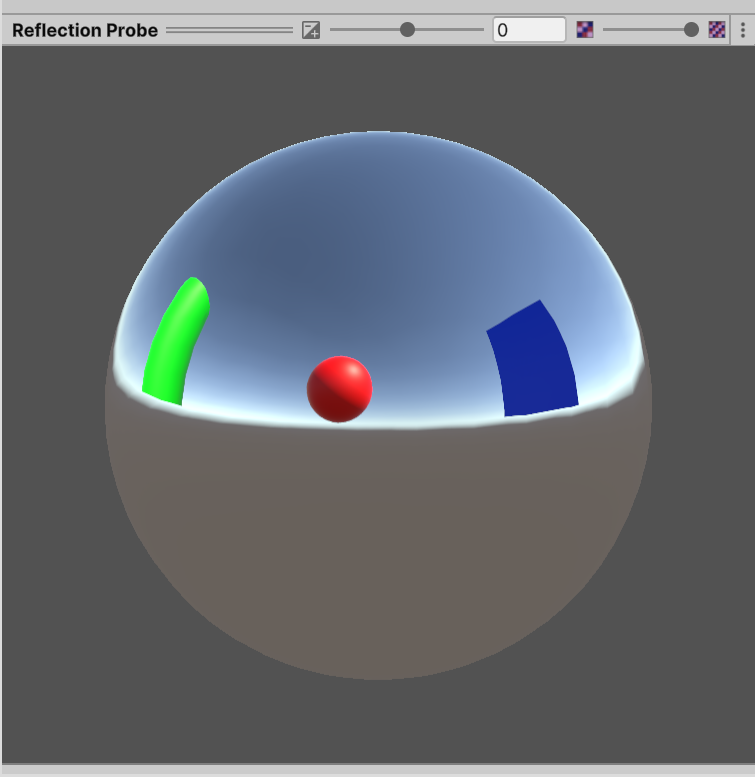
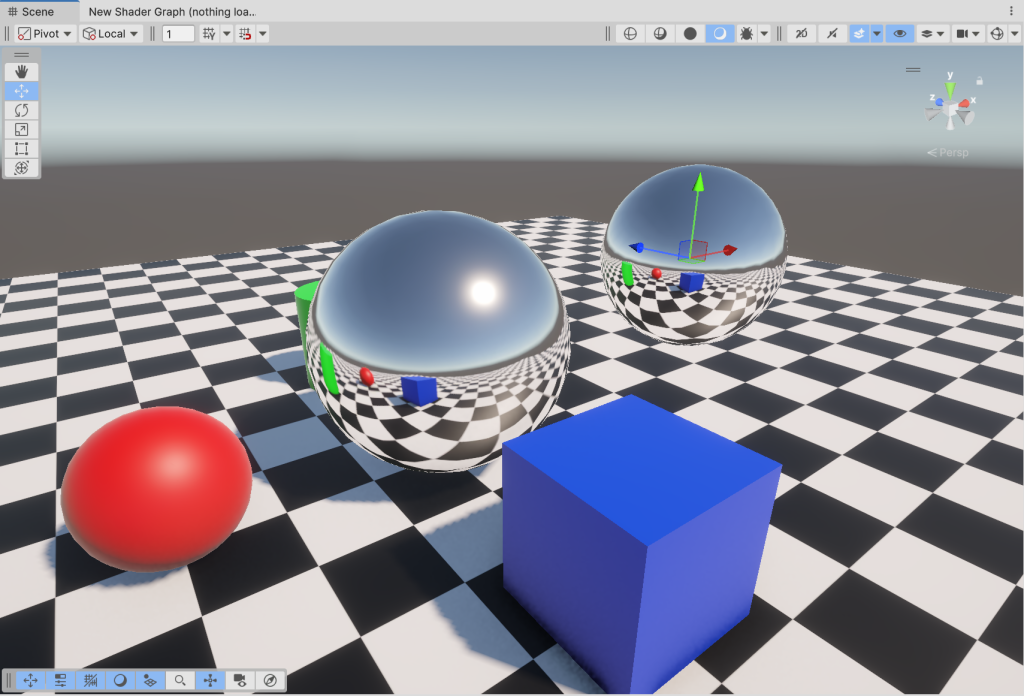
15) Adjust the position of the reflection probe object and click bake.
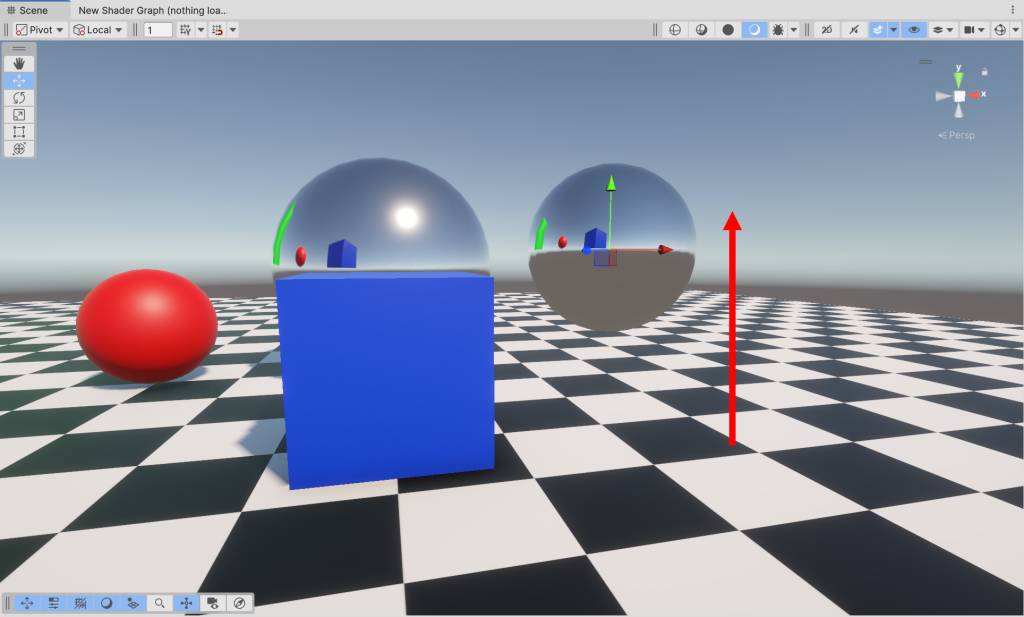
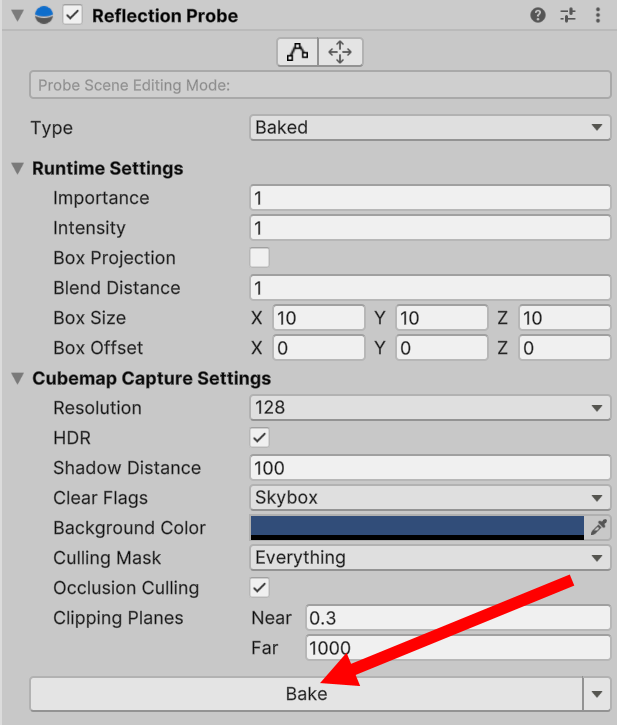
16) You can see that the cubemap captured and baked at that location has been updated.

Reflection probe resolution settings (cubemap resolution)
17) Zoom in on the object in the scene to see that the surroundings reflected from the surface have a low resolution.
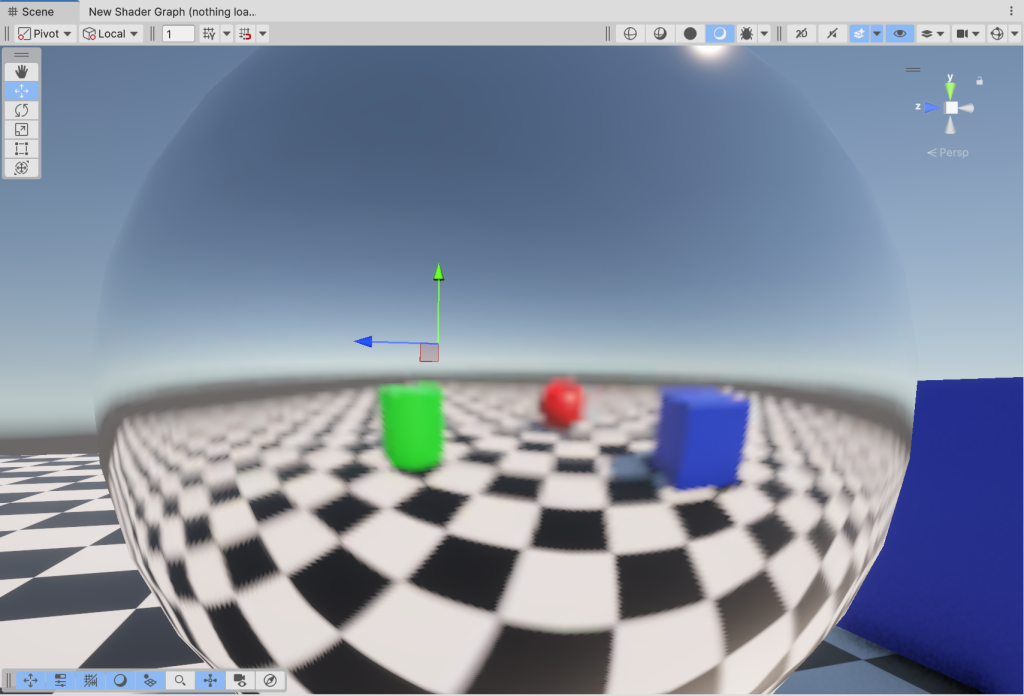
18)Select the resolution in the cubemap capture settings of the reflection probe and click bake.
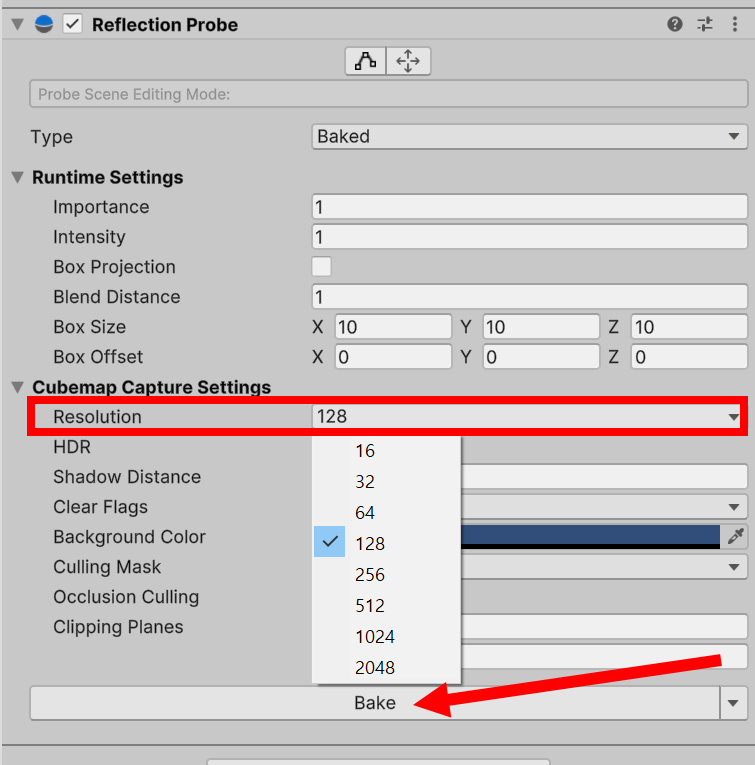
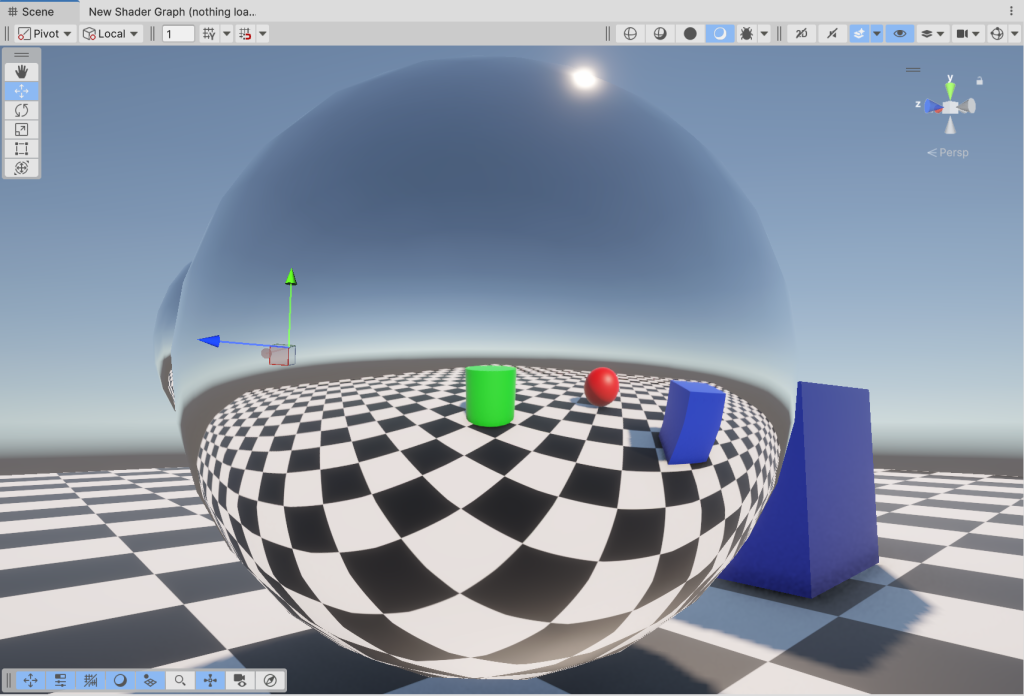
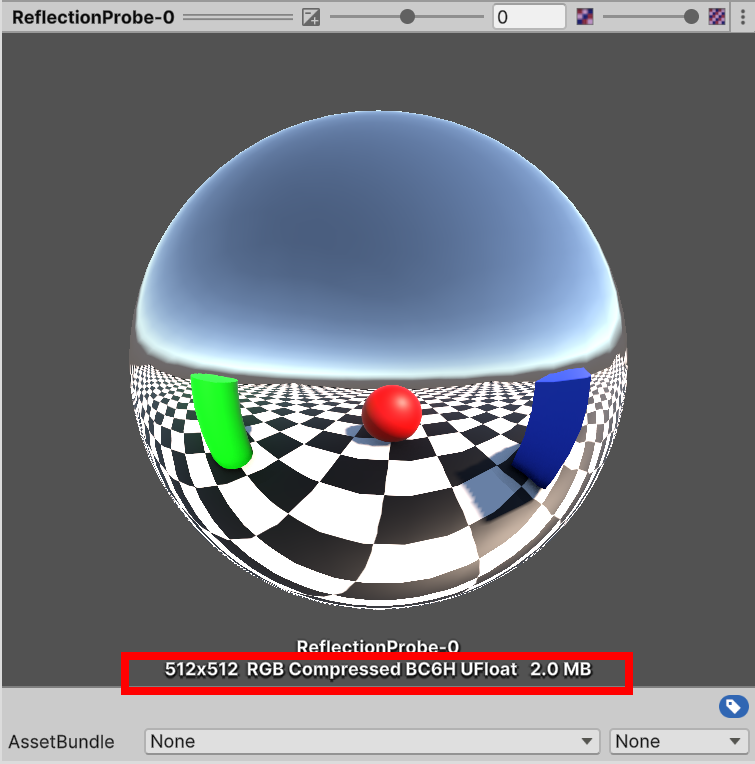
19) The surroundings reflected are displayed in a higher resolution, and you can see the resolution and data size in the updated cubemap preview.

![[Unity Game Dev] Adding Scoped Registries and Installing Packages in Unity](https://inspired-learn-create.com/wp-content/uploads/2025/06/2025-02-13_14-21-25-1024x810.png)
![[Unity] Volumetric Lighting Effect in URP Project (Unity-URP-Volumetric-Light Package)](https://inspired-learn-create.com/wp-content/uploads/2025/06/2025-03-20_10-43-29-1024x592.jpg)